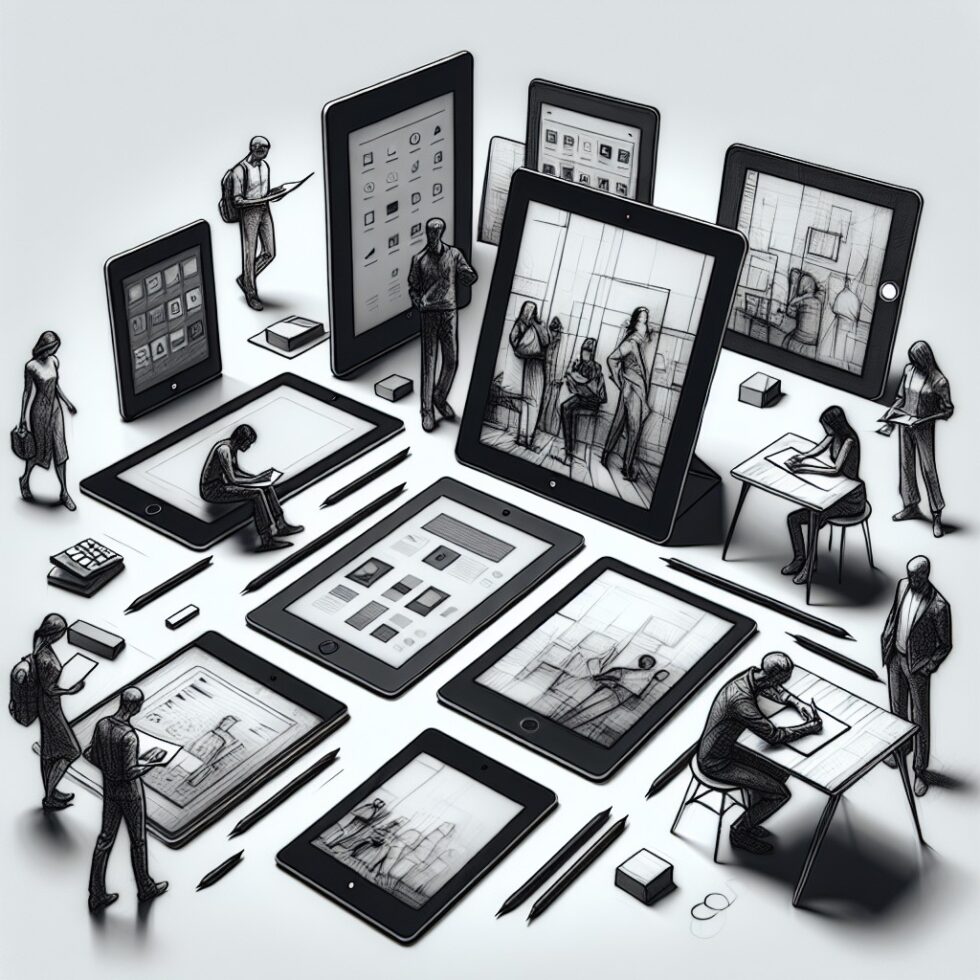
Why e‑ink is having a moment
E‑ink tablets sit in a useful middle ground. They are not flashy computers, and that is the point. The display is reflective, not backlit. The screen holds an image without constantly refreshing. Battery life is measured in days or weeks. Notifications are rare by default. If you want a space for deep reading, steady handwriting, and calm planning, e‑ink can help you build that habit.
Modern e‑ink has also moved beyond the first wave of “slow” screens. Current panels offer 300 dpi for sharp text. Front lights are even and warm. Pen latency is low enough to feel natural, and some models support tilt and pressure. You can mark up PDFs, export clean notes, and keep everything in sync without a noisy app store in your face.
This guide focuses on two things: how to choose the right device for your use, and how to build a workflow that stays simple. The goal is not to add another gadget. It is to remove friction between reading, thinking, and keeping track of what you learn.
Pick a device that matches your work
Screen size: 7–8″, 10″, or 13″?
Size is the first fork in the road. It determines comfort, what files feel “native,” and how portable your kit is.
- 7–8 inches: Pocketable. Great for novels, articles, and lightweight lists. Not ideal for dense PDFs or wide spreadsheets.
- 10 inches (A5 class): The sweet spot for note‑taking and most PDF reading. Big enough to write comfortably without being heavy.
- 13 inches (A4 class): True full‑page PDFs and sheet music. Excellent for engineers, researchers, and legal work. Less portable and pricier.
Display tech and lighting
Most recent devices use E Ink Carta panels. They are black‑and‑white, 300 dpi, and crisp. A few models use Mobius (a flexible substrate) for a lighter, more durable feel. Color e‑ink (Kaleido, Gallery 3) is emerging, but the refresh rates and contrast still suit diagrams more than video or photo work.
Front lights matter. They are not backlights; they project light across the screen. Look for warmth adjustment and even illumination. If you read at night, a warm tone reduces eye strain. During the day, many people turn the light off and rely on ambient light, which is one reason e‑ink feels relaxed.
Pens, nibs, and latency
Pen feel is a mix of hardware and software. Battery‑free EMR pens (Wacom EMR is common) are dependable and have good tilt detection. Some devices support pressure sensitivity; others focus on tilt and speed. Latency below ~40 ms feels fine for writing; under ~25 ms feels very close to paper. The paper‑like feel also comes from the top layer. A matte, slightly textured surface adds tooth and control. You can always add a screen protector if you want more texture.
Nibs wear over time, especially on rougher surfaces. Keep a few spares. If you sketch hard, consider smoother screen protectors or pens with harder nibs.
Software philosophy: closed vs Android
There are roughly three approaches:
- Purpose‑built, minimal OS: Stable, distraction‑light. You get tuned note apps, a clean library, and simple export. You give up broader app stores.
- Android‑based readers: Install your favorite reading, cloud, and productivity apps. Powerful and flexible, but more tempting distractions and more to maintain.
- Retail e‑readers with pens: Simple, focused reading with some annotation features. Good for book lovers who occasionally write.
Pick the style that fits your temperament. If you buy an e‑ink tablet to get away from “just one more app,” lean minimal. If your work depends on specific Android apps (reference managers, mind maps, cloud drives), choose a reliable Android e‑ink device and commit to a small, pinned set of apps.
Battery, storage, and build
Battery life depends on reading time and lighting. Expect multiple days of heavy use or weeks of light reading. Storage matters if you keep lots of PDFs or notebooks on‑device. 32–64 GB is comfortable for most people. Pay attention to build: magnesium frames are light and stiff; flexible substrates help with durability. A good folio case with pen loop solves 80% of scuffs and pen‑lost moments.
Build a calm workflow you will keep
Start with one stack
You do not need six apps, three clouds, and four naming conventions. Begin with:
- One reading library: A folder for books and PDFs, organized by topic.
- One notes space: A single notebook per focus area (work, study, personal). Use templates sparingly.
- One sync method: Pick cloud sync, WebDAV, or local sync and stick with it.
The fastest way to fail is to build a fragile empire. The fastest way to succeed is to keep your stack boring and steady.
File formats that behave
Use EPUB for books and articles. Text reflows cleanly, fonts adjust, and highlights export well. For scanned papers or layout‑heavy documents, use PDF. If a PDF has wide margins, crop them on import to maximize space. If you need to annotate, check whether your device writes annotations directly into the PDF or in a sidecar file. Embedded annotations travel better.
Consider a “staging folder” for new material. Every week, file items to a permanent folder with names like “2025‑01‑ProjectX‑Design‑Review.pdf.” Predictable names make search and backup simple.
Sync without stress
There are three clean ways to sync:
- Vendor cloud: Easiest. Best for stable, single‑user setups. Check export options and privacy terms.
- General cloud drives: Integrate a small number of folders with your device (for example: “Reading In,” “To Review,” “Archive”). Avoid syncing your entire drive.
- Local sync: Use tools like WebDAV or peer‑to‑peer sync. It keeps data private and works well if your phone and laptop are part of the loop.
Whichever you choose, keep structure consistent across devices. On your laptop, mirror the same folder layout. On your phone, use a single “send to device” shortcut that drops files into your “Reading In” folder.
Capture and send to your e‑ink
Make capturing effortless:
- From the web: Use a reader mode or clean‑up tool before saving to EPUB or PDF. Avoid cluttered, ad‑heavy pages in your long‑term library.
- From paper: Scan with a phone app at 300 dpi. Auto‑crop and deskew. Convert to PDF with OCR so you can search your notes later.
- From apps: Export slides or reports to PDF. Bundle related files into one PDF to reduce hunt time on the tablet.
Write once, find it later
Handwriting that stays searchable
Handwriting is wonderful for thinking, but it becomes powerful when it is searchable. Most e‑ink note apps can convert handwriting to text on demand or in bulk. Try this pattern:
- Write your notes freely during a meeting or study session.
- At the end, add a one‑line summary header in all caps. Example: “DECISION: Move launch to Q3 due to stress tests.”
- Convert the page to text and embed the summary at the top. Export to your archive folder.
Now you can search by keyword, and your future self finds decisions fast. If your device supports on‑device OCR, use it for sensitive notes. If cloud OCR is significantly better, reserve it for non‑sensitive material.
Templates that help, not trap
Templates are useful if they reduce thinking. Keep two or three:
- Daily page: Date, three priorities, schedule blocks, quick notes.
- Meeting page: Agenda, attendees, decisions, next actions.
- Reading page: Citation, page range, key quotes, questions.
Link templates to habits. Start each workday on a fresh Daily page. End each meeting by filling the “decisions” section. At the end of a reading session, write one question to revisit next time.
Highlights that survive the trip
Highlights are only useful if they travel. Test export early. Export formats to check:
- PDF with highlights: Best for sharing and long‑term storage.
- Markdown or plain text: Best for feeding into your notes app on laptop or phone.
- CSV: Nice for bulk processing later.
Pick a format and keep it consistent. If a platform exports per book, schedule a monthly export sweep so nothing lingers uncollected.
Focus rituals that compound
Make the tablet the default
If you find yourself reading on a phone out of habit, change the environment. Keep the e‑ink tablet where you read: next to the kettle, near the couch, in your bag. Turn off Wi‑Fi during reading sessions. Batch sync in the morning and disconnect later. Small friction in the right place shapes behavior.
Use a “reading compass”
Before you start a session, write a one‑line intent: “I’m reading this paper to decide whether to cite it.” That keeps you from drifting. When you finish, write a one‑line outcome. This habit takes 20 seconds and pays off when you come back weeks later.
Light, posture, and eyes
Front lights are gentle, but lighting still matters. Aim a warm front light in dim rooms. Sit near a window during the day. Hold the tablet slightly lower than eye level to reduce neck strain. Take a short break after each chapter or section. These small cues help you build sessions you want to repeat.
Two special cases: students and researchers
Students: keep classes clean
One notebook per class. Each notebook begins with a syllabus page containing deadlines and exam dates. Add a table of contents page you update weekly. Export each week’s pages as a single PDF and store it in a class folder. Before exams, you have seven neat PDFs to review and annotate on the same device.
Researchers: a stable PDF pipeline
Academic PDFs can be messy. Use a laptop tool to batch clean and OCR them. Name files with a readable format: “AuthorYear‑ShortTitle.pdf.” On your e‑ink device, have three folders: “To Read,” “Reading,” and “Keep.” When you finish a paper, export highlights to plain text and paste a 3‑line abstract in your reference manager. This tiny ritual keeps your literature graph coherent without fancy software.
Common trade‑offs and how to choose
Minimal OS vs full Android
- Pick minimal if your priority is focus, you like built‑in templates, and you do not need many third‑party apps.
- Pick Android if you depend on a specific app stack, want multi‑app workflows, and are comfortable tuning settings to reduce distractions.
10″ vs 13″
- Pick 10″ if you mix books, notes, and occasional PDFs. It is lighter and easier to use in cramped spaces.
- Pick 13″ if most of your work is letter/A4 PDFs, technical diagrams, or sheet music. The screen size saves zooming and panning time.
Color e‑ink now or later
- Pick grayscale for maximum contrast, battery life, and crisp text.
- Pick color if you rely on color codes in diagrams or you review textbooks with colored figures. Expect lower contrast and slower page changes versus grayscale.
Privacy, security, and longevity
Local first when you need it
One quiet benefit of e‑ink tablets is the smaller attack surface. Many have no camera and no microphone. If you are handling sensitive notes, prefer on‑device OCR and local sync. If you do use cloud features, read the privacy policy and test how easy it is to export everything if you ever switch devices.
Backups that do not fail
Do not lean on one vendor service. Once a week, export your notebooks and highlights to a folder on your laptop. Back that folder up with your normal backup (Time Machine or similar). Once a month, check that you can open a few exported PDFs and text files. Restores fail when nobody checks them.
Accessories that extend life
- Case: Protects the screen and keeps the pen attached.
- Spare nibs: Replace when your lines look shiny or too slippery.
- Screen film: Add texture or protect from scratches. Matte films reduce glare but can slightly soften text; try one designed for e‑ink.
Making the most of handwriting tools
Layers, shapes, and lasso
Even simple note apps often include layers for sketching, shape snapping for clean diagrams, and lasso tools for moving or resizing. Use layers to separate annotations from base notes. For example, put “Questions” on a second layer you can toggle. Use the lasso to pull key notes into a summary box at the end of the page.
From handwriting to structured notes
Convert a page to text, then add light structure:
- Use bold for headers and italics for keywords when you paste into your text editor.
- Add tags like #projectx or #topic‑ethics at the top. They make cross‑app search easier.
- Link to the source PDF or book location if your app supports it.
The point is not to create a second brain. It is to make your first brain easier to use next week.
Where e‑ink shines, and where it does not
Perfect fits
- Long‑form reading without the pull of notifications.
- Handwritten thinking: planning, outlining, sketching systems.
- Quiet workflows in meetings, classrooms, or libraries.
- Daily review of highlights and notes without switching screens 100 times.
Things to avoid
- Video, gaming, or rapid scrolling. The tech is not built for it.
- Color‑critical design work. Color e‑ink is improving but still limited.
- Heavy web browsing. Even on Android e‑ink, browser rendering feels slow and gray.
A sample week with an e‑ink routine
Here is a simple schedule most people can keep:
- Monday morning: Sync “Reading In.” Pick three items. Crop margins on dense PDFs. Add a Daily page with three priorities.
- Midweek meetings: Use the Meeting template. End each note with a one‑line decision. Convert to text and export.
- Evenings: Read a chapter or paper. Highlight and write a one‑line outcome. Export highlights once.
- Friday wrap‑up: Export weekly notebooks to your archive. Tag key pages in your text notes. Clear “Reading In.”
By the end of the month, you have a neat archive and a mind not cluttered with half‑kept places.
Troubleshooting myths
“E‑ink is too slow for real work.”
It is too slow for video or rapid scrolling, yes. For reading, annotating, and note‑taking, it is fast enough. The deliberate speed is a feature for focus.
“Handwriting OCR is unreliable.”
OCR depends on pen habits and page prep. Use clear headers, print key terms rather than cursive for proper names, and convert in good light if you are using a camera scan. On‑device OCR continues to improve and is plenty accurate for keywords and headings.
“Cloud export is risky.”
It depends on content. Split sensitive notes from everyday material. Use local sync for private work. Export openly for public reading. You do not need an all‑or‑nothing stance—use both modes as needed.
Buying pointers without the hype
Before you purchase, write down your top three tasks. For example: “Annotate research PDFs,” “keep a daily sketch journal,” “read fiction at night.” Bring that list to reviews or spec pages. If a feature does not help those tasks, ignore it. You will end up with a device that feels made for you.
Check these in person if you can:
- Pen feel: How does the nib glide? Do lines appear fast enough?
- Library flow: Is it easy to find and filter documents?
- Export path: Can you get notes out in the format you want?
- Lighting: Evenness and warmth. Glare under your usual lighting.
If testing in person is not an option, order from a seller with a good return policy. Give yourself a week to try real work on it. If it feels forced, return it and try another size or OS style.
Integrating with the rest of your tools
Reference managers and research
If you use a citation manager, keep your PDFs there on your computer and sync a read‑list folder to the e‑ink device. After reading, export highlights to a text file and attach it to the citation. A one‑sentence abstract and three bullet “why it matters” notes will save you hours later.
Task systems and calendars
Do not try to run a full task manager on e‑ink. Instead, write your day’s three priorities on a template page, and keep your full task list on your phone or laptop. At day’s end, take 60 seconds to copy any “next actions” from your notes into your main task system.
Writing and drafting
Many people find the pen‑first drafting flow magical. Sketch an outline by hand. Convert to text. Paste into your writing app of choice. You get the best of both worlds: the speed of handwriting for ideas, and the clarity of typed editing for polish.
When to upgrade, and when to wait
Upgrade if your current device fights you on your top tasks: PDFs are painful, pen latency breaks flow, or export is unreliable. If you are tempted by color e‑ink for light diagrams, it can be worth it. If you mostly read text and jot notes, a good grayscale device will serve for years. The most important “upgrade” is often tightening your workflow, not swapping hardware.
Summary:
- E‑ink is ideal for calm reading and handwriting. Pick size by your files: 10″ for most, 13″ for heavy PDFs.
- Choose minimal OS for focus or Android for flexibility. Keep your app list tiny.
- Use EPUB for reflowable text and PDF for layout‑heavy documents. Crop margins on PDFs.
- Adopt a simple structure: one library, one notes space per area, one sync method.
- Make handwriting searchable: add a one‑line summary, convert to text, and export.
- Export highlights in formats you will use later (PDF, Markdown, CSV).
- Protect privacy with on‑device OCR and local sync for sensitive notes. Back up weekly.
- Use templates that reduce thinking: Daily, Meeting, Reading. Link them to routines.
- Upgrade only if your device blocks your top tasks. Workflow discipline beats new specs.