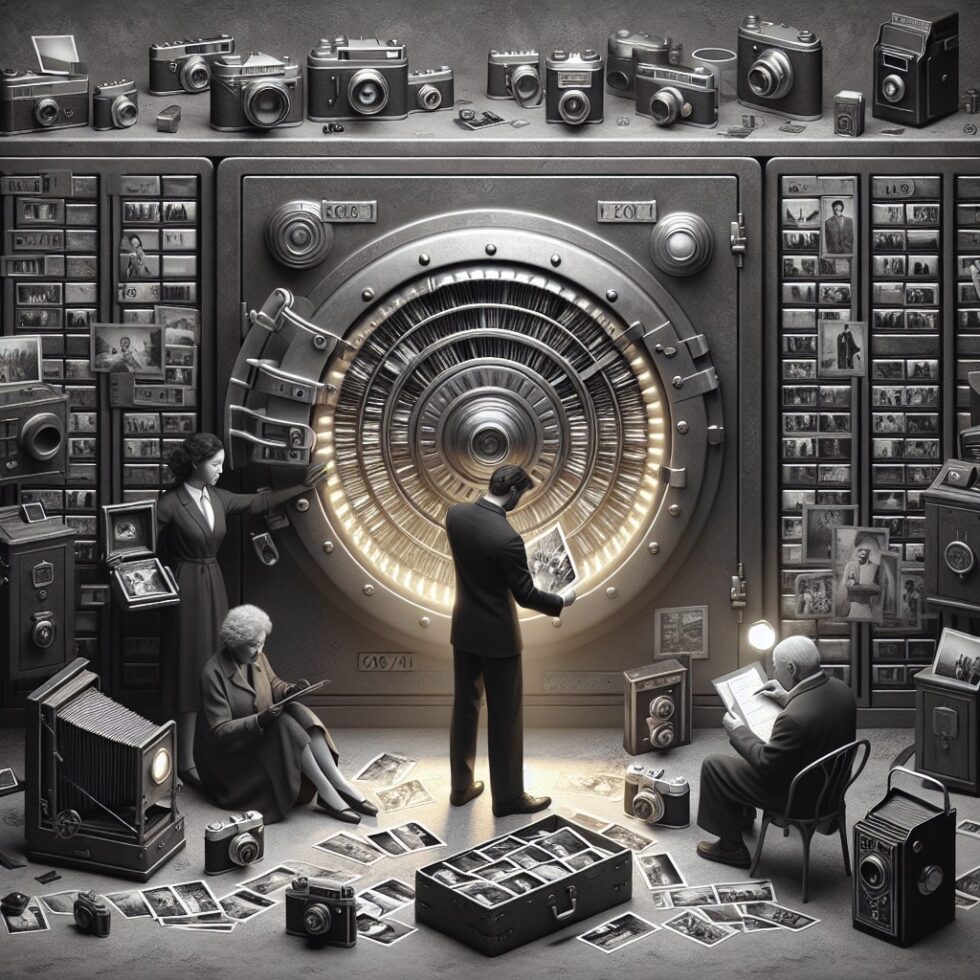
Your photos and videos are more than files; they’re a living record of your life. But right now, they’re probably scattered across phones, laptops, social apps, and aging hard drives. Some are in proprietary formats. Some have missing dates. Others exist five times over with slightly different edits. You want a memory vault that lasts and stays useful—not a pile that grows until it breaks.
This guide is a practical playbook for building and maintaining a durable personal archive. You’ll make clear choices on master formats, protection strategies that don’t fall apart, metadata that makes memories findable, and small automations that keep the whole thing rolling. No enterprise lingo, no museum-level overhead—just a plan you can run at home or in a small team.
Decide What You’re Keeping—and Why
Before you touch a file, choose a scope. The simplest durable strategy starts with defining masters and derivatives:
- Masters: Highest-quality originals with complete metadata. These are your “negatives.” You don’t edit them. You protect them most.
- Derivatives: Copies for sharing, quick viewing, slideshows, or social. You can export, watermark, compress, and crop these as needed.
Draw a line. If you photograph daily life casually, keeping phone originals as masters works fine. If you shoot with a camera, retain RAW or DNG files as masters. For scanned prints, treat the full-resolution, color-managed TIFF or high-quality JPEG as masters.
Master Photo Formats That Age Well
There is no perfect format, but you can choose well with a few rules that emphasize stability and portability:
- RAW (proprietary): Capture from cameras (CR3, NEF, ARW, etc.). Keep if you edit seriously and want future flexibility. The risk is long-term software support for every brand.
- DNG (open-ish RAW container): A good neutral “digital negative” for many. Converting proprietary RAW to DNG can reduce risk, but keep an eye on any features that don’t carry over from the original RAW.
- TIFF: Uncompressed or lossless-compressed TIFF is a strong master for scans and edited outputs. It’s huge but proven and widely supported.
- JPEG: Baseline JPEG is still a reliable master for phone photos and camera JPEGs. It’s lossy, but nearly universal with tiny risk of future incompatibility.
- HEIC/HEIF: Efficient and common on iPhones. Keep as masters if that’s how your phone captures. Be sure you can decode them off-Apple when needed.
- AVIF: Very efficient with promising quality, but tool support varies. Consider for derivatives, not core masters, unless your workflow is solid with AVIF.
Color management tip: If you’re not deep into color workflows, prefer sRGB for derivatives and ensure your masters carry clear, embedded profiles (sRGB, Adobe RGB, or P3) so they display predictably.
Master Video Formats With Less Regret
Video has more moving parts. Choose a practical baseline that survives migration:
- Containers: MP4 and MOV are the sane defaults. MKV is excellent for archiving but can be less friendly on phones and TVs.
- Codecs: H.264 is the compatibility king. H.265 saves space but can be harder to play back and edit. ProRes or DNxHR make great master intermediates if you edit, but files are big.
- Framerate and audio: Keep original framerates. Avoid re-encoding if you’re only reorganizing. Preserve original audio tracks and subtitles when they exist.
If space is tight, it’s okay to standardize derivatives in H.264 for easy playback today while keeping an original copy—or a mezzanine master (like ProRes)—for long-term editing freedom.
Metadata Matters More Than Pixels
What you can’t find, you can’t enjoy. Metadata turns big folders into a usable memory map. Three families matter most:
- EXIF: Camera data—timestamps, exposure, focal length, and often GPS.
- IPTC: Captions, keywords, people metadata, and rights information.
- XMP: A flexible sidecar and embedding standard for descriptive metadata and edits (used by many photo apps).
Best practice: store descriptive metadata in embedded XMP when possible, or XMP sidecar files with the same base name as your media. This keeps your data portable across software. Avoid app-only fields that never leave a single library.
Clean Timestamps and Time Zones
Bad timestamps ruin search. Make a point to normalize time zones and fix off-by-hours errors from travel or mixed device clocks.
- Pick a single reference time zone (usually local time) and stick to it for capture and display.
- Batch-fix frequent errors with a tool that writes back to EXIF/XMP. For example, shift all photos by +8 hours for that Asia trip if the camera never updated.
Consistent Naming That Helps Humans
A good name scheme speeds scanning and keeps files stable when they leave an app. Use a short, sortable pattern:
- YYYYMMDD_HHMMSS_Cam01_Seq03.jpg or similar. Put date first. Keep IDs short and alphanumeric.
- Preserve camera-assigned filenames as a field in metadata so you never lose that reference.
- Keep sidecars (e.g., .xmp) exactly base-matched with the associated media filename.
Keywords, Places, and People—With Privacy
Use simple keywords that make sense a decade from now: “birthday,” “graduation,” “roadtrip.” Add place names—even if your camera didn’t record GPS. Location and face tags are powerful, but remember privacy:
- Keep full metadata in masters.
- Strip sensitive fields (GPS, faces, contact info) when sharing derivatives. Many tools can remove EXIF/XMP fields on export.
Deduplication and Fixity
Duplicates pile up fast—edits, bursts, cloud re-downloads. Set a policy:
- Pick one keeper when two files are identical except for edits; keep the highest quality original as master and tag the edit as derivative.
- Use hashes (SHA-256) to detect true byte-identical duplicates. Store a manifest file at the root of your archive.
This is also where fixity enters: using hashes to confirm files are unchanged over time. Schedule a periodic check that recomputes hashes and flags mismatches. Early detection gives you time to restore a clean copy.
Storage You Can Count On
You’ll hear a lot of storage myths. Here’s a practical, dependable baseline: the 3-2-1-1-0 rule for personal archives.
- 3 copies
- 2 different media types (e.g., HDD + cloud)
- 1 off-site copy
- 1 offline or immutable copy (ransomware-safe)
- 0 unverified backups (you’ve test-restored)
Translate that into something you can run:
- Main working copy: On a reliable external HDD or NAS with regular scrubs and a checksum manifest.
- Second local copy: Another external drive updated monthly and then unplugged.
- Off-site or cloud copy: A cloud storage bucket or a drive you keep at a friend’s house or in a safe deposit box.
HDD, SSD, Tape, Cloud—What Really Works?
- HDD: Still the best price per TB for cold archives. Replace drives proactively every 4–6 years and monitor health. Store drives upright, cool, and dry.
- SSD: Excellent for active editing and portability. For long-term cold storage off power, SSDs can be tricky; keep them powered periodically, and don’t rely on a single SSD as your only long-term copy.
- Tape (LTO): Durable and cost-effective at scale with a learning curve. Best if you manage lots of data and are comfortable with drives and tape sets.
- Cloud cold storage: Services like S3 Glacier or Backblaze B2 are robust. Watch egress fees and retrieval delays; cloud is not magically instant if you choose deep cold tiers.
Immutability and Ransomware Safety
Your precious files can be encrypted in seconds by malware. Two tactics help:
- Offline: Keep at least one copy fully disconnected except during updates.
- Immutable: Some cloud storage and NAS systems offer object lock or WORM (write once, read many). Use it for monthly snapshots so nothing can silently rewrite your history.
Encryption, Keys, and Future You
Encrypt off-site and cloud copies. The hard part is key management, not the cipher:
- Use a tool you can still open in 10+ years (ZIP AES-256, age, GPG, or native encrypted volumes).
- Print and seal a written copy of passphrases or key material and store it safely. Tell a trusted person how to find it.
- Keep a plain-English README file in your archive root explaining the structure and how to restore—written for a non-technical family member.
Folder Structure That Survives Apps
You should be able to browse your archive without any special software. Keep it simple and sortable:
- /Photos/ by year and month: /Photos/2021/2021-07/, then event subfolders if needed.
- /Videos/ with the same pattern.
- /Scans/ for prints, negatives, documents, organized by source and date scanned.
- Keep a /Derivatives/ tree that mirrors masters when you export edits or shareables.
- Store sidecars next to their media, same base name.
Resist clever folder names that won’t make sense later. Use clear dates and a short event tag if it truly helps.
Workflows That Actually Stick
Fancy systems die when they take too much time. Build a routine that piggybacks on things you already do and runs mostly on autopilot.
Ingestion: From Phone and Camera to Vault
- Phone: Set a monthly reminder. Export originals from your photo service with metadata intact. Watch for HEIC+Live Photo pairs; decide if you keep motion, still, or both.
- Camera: Copy card to an “_INBOX” folder, then rename and date-stamp files on import. Quickly delete obvious outtakes, but don’t over-curate; storage is cheaper than regret.
- Edits: Export derivatives to a parallel folder tree. Don’t overwrite masters. Save sidecar edits if your tool supports them.
Scanning Prints and Slides
- Resolution: 600 dpi for small prints is a sweet spot. Go higher for tiny originals or if you plan big reprints.
- Color: Scan in 16-bit if possible, embed a profile (sRGB or Adobe RGB), and save as TIFF or high-quality JPEG.
- Capture apps: Mobile scanning is okay for casual use; watch for glare and perspective. Use a tripod, even light, and a simple cardboard mask to flatten prints.
Automation: Let Computers Do Boring Work
- Watch folders: Auto-rename imports to your scheme and write dates into EXIF/XMP if missing.
- Checksum jobs: Compute or update SHA-256 manifests whenever new files land.
- Scheduled backups: Nightly to your primary backup, monthly to your offline drive, quarterly to immutable cloud or off-site.
- Fixity checks: Monthly or quarterly hash verification. Log results; alert on mismatches.
- Heir instructions: Update the README with plain steps to decrypt, browse, and restore.
Make Searching Easy Without Lock-In
You can have universal files and still enjoy fast search, face detection, maps, and albums. The trick is running a library on top of your stable folder tree, not instead of it.
- Self-hosted libraries: Tools like PhotoPrism or Immich index folders and build smart views while leaving your files as-is.
- Desktop managers: Apps like digiKam or darktable maintain catalogs and sidecars you can back up. If you move apps later, your files and most metadata still travel.
- Cloud viewers: Even if you sync to a cloud viewer, keep your local structure the source of truth.
When you change captions, keywords, or dates, push those changes back into embedded metadata (or sidecars) so you’re not trapped in a single app’s database.
Sharing Without Losing Control
Share derivatives. Keep masters private. That’s the one-sentence rule that prevents 90% of sharing regrets.
- Export presets: Make presets for web (sRGB, modest resolution), family albums (high-quality JPEG, no GPS), and print (TIFF/JPEG at full resolution).
- Strip metadata: Drop GPS and people tags from public posts. Keep captions if you want context to travel.
- Delivery: Use cloud shares, password-protected albums, or a private photo server. Avoid endless resends over messaging apps that recompress.
- Watermarks and filenames: For wider sharing, a subtle watermark and stable filenames discourage confusion and misuse.
Disaster Recovery Is a Habit, Not an Event
A backup you’ve never tried is a hope, not a backup. Practice small restores:
- Quarterly drill: Retrieve five random files from each copy (local backup, offline drive, cloud). Confirm hashes match your manifest.
- Decryption test: Walk through the full decrypt process with your printed instructions. Fix anything confusing now, not later.
- Drive refresh: Replace drives on a schedule, not just when they fail. Migrate your archive forward before the hardware ages out.
Ethics, Consent, and Future-Proofing People Data
Memories include people. Be kind and cautious:
- Consent: Don’t publicly share images of others—especially kids—without consent.
- Face recognition: Powerful, but store face tags locally and avoid pushing that data to public clouds unless everyone agrees.
- Legacy planning: Set up account legacy features (e.g., Apple Legacy Contact, Google Inactive Account Manager). Note access in your archive README so trusted people can find and care for your vault later.
Common Pitfalls—and Practical Fixes
- Pitfall: Relying on one app’s cloud to be your archive. Fix: Export originals with metadata and maintain your own folder-based master vault.
- Pitfall: Constant re-encoding to “save space.” Fix: Keep masters intact. Use efficient derivatives for daily use, and don’t transcode again and again.
- Pitfall: Mixed time zones causing messy timelines. Fix: Normalize capture dates in EXIF/XMP and lock a single policy.
- Pitfall: No offline or immutable copy. Fix: Add an unplugged drive or immutable cloud snapshot to your rotation.
- Pitfall: Lost keys and passwords. Fix: Write down recovery steps and store them in a safe place. Test every few months.
Putting It All Together: A Sample “Weekend Build” Plan
If you like checklists, here’s a compact plan you can run over a weekend, then maintain monthly:
- Make a home for the vault: Create /Archive/Photos and /Archive/Videos with year/month folders.
- Pick master formats: Decide to keep phone HEICs as masters plus a JPEG derivative; keep camera RAWs (or convert to DNG); save scans as 16-bit TIFF.
- Import and normalize: Ingest from phone, camera, and old drives into an “_INBOX,” then rename to your date-based scheme. Fix missing timestamps and add a few key keywords.
- Write metadata: Embed captions and keywords. Save sidecars if your editor needs them. Generate a SHA-256 manifest per folder.
- Back up 3-2-1-1-0: Copy to a second local drive, then push to cloud cold storage. Make a monthly immutable snapshot. Unplug a third drive for offline safety.
- Automate: Set watch-folder rules, a weekly import reminder, a monthly offline backup task, and a quarterly fixity check.
- Document: Write a README that explains the structure, encryption, and restore process. Print decryption keys or recovery hints and store them safely.
Once set, your ongoing work is light: a few minutes each week to import, a short monthly backup session, and a quarterly restore test. That’s a small price for memories you can actually enjoy—today and decades from now.
Summary:
- Keep a clear split between masters and derivatives to protect quality and simplify sharing.
- Use durable formats: RAW/DNG or high-quality JPEG/TIFF for photos; MP4/MOV with H.264/H.265 or ProRes for videos.
- Make metadata portable with embedded XMP or sidecars; normalize timestamps and use simple, human-friendly filenames.
- Adopt 3-2-1-1-0 protection with at least one offline or immutable copy and regular fixity checks.
- Build a folder structure that outlives any single app; let indexing tools sit on top of it.
- Automate imports, renaming, hashing, and backups to keep effort low and consistency high.
- Share derivatives and strip sensitive metadata to preserve privacy.
- Practice disaster recovery by test-restoring files and decrypting with your written instructions.