
Your photos, documents, and family videos are scattered across phones, laptops, and a handful of cloud accounts. Every year, the pile grows, and every year, you wonder where the reliable copy lives. A home NAS solves that problem in one box: a small server on your network that stores everything in one place, backs itself up, and keeps your data under your control.
This guide covers what a NAS actually does, which hardware and software choices hold up over time, and how to set up storage, backups, and privacy so the system runs quietly for years. The goal is not the most powerful machine. It is the one that just works.
What a Home NAS Really Does
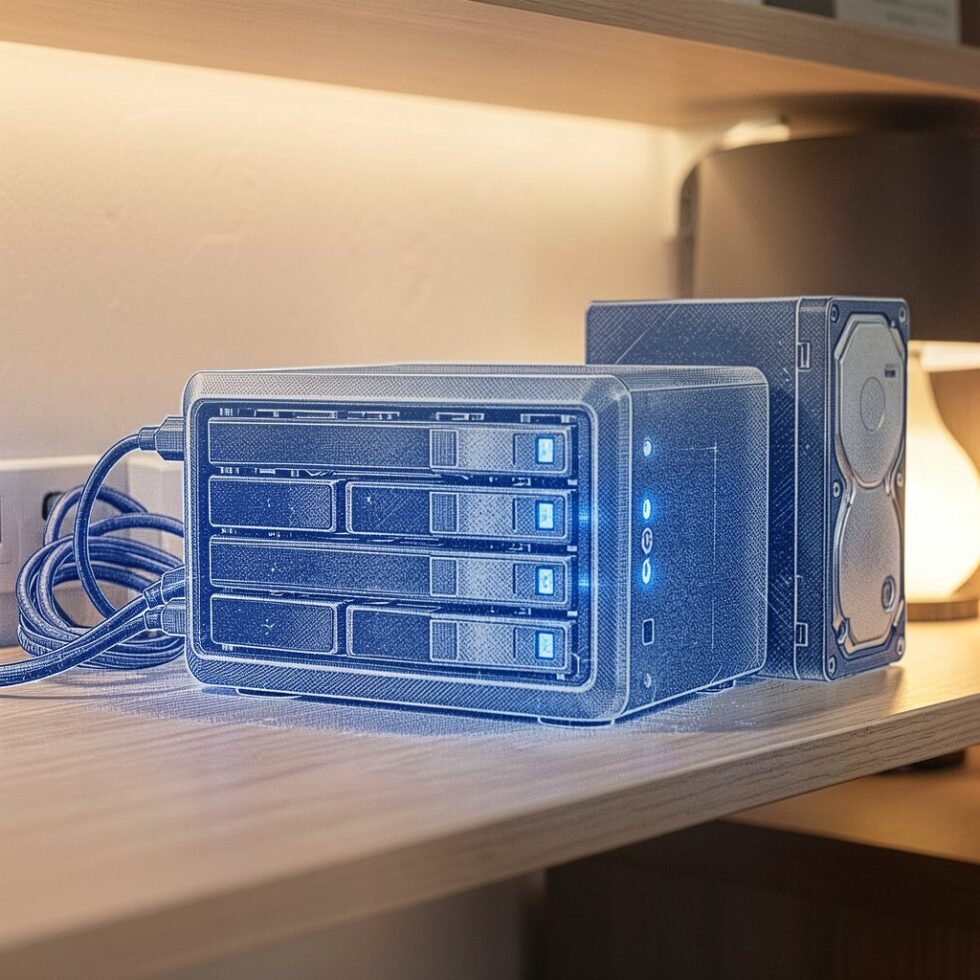
A network-attached storage device is a dedicated computer with hard drives, connected to your router. It serves files to every device on your network: laptops, phones, tablets, and smart TVs. Instead of emailing a file to yourself or paying for another cloud subscription, you copy it to a shared folder once and it is available everywhere.
Modern NAS units go beyond file sharing. They run apps for photo management, video streaming, password vaults, and automated backups. They can also act as a private cloud, so you can reach your files from outside your home without handing them to a third party. That combination of storage, apps, and remote access is why NAS units have moved from enthusiast gear to a practical household tool.
Why Now: The Case for Owning Your Storage
Cloud storage is convenient, but it comes with recurring costs and limits. A family with several terabytes of photos pays a monthly fee that never ends, and the provider decides how much space you get. A NAS is a one-time hardware purchase, and the storage capacity is whatever you install.
Privacy is the second reason. When your files live on someone else’s server, that company can scan them, and your access depends on their terms. Self-hosting keeps the data on hardware you control. As XDA Developers notes, self-hosting gives you full ownership, while cloud services trade that control for convenience. The trade-off is real: you take responsibility for backups and security. With a little planning, that responsibility is manageable.
Choosing the Hardware That Holds Up
Start with the number of drive bays. A two-bay unit is the cheapest entry point, but it limits your options. A four-bay unit costs a bit more and lets you grow without replacing the whole box. For most households, four bays is the sweet spot: two drives for data and redundancy, with room to expand.
The processor matters less than you think for basic file serving, but it matters for apps. Photo indexing, video transcoding, and backup jobs all benefit from a capable CPU. Current mid-range units ship with quad-core chips such as the Intel Celeron N5095 or the Intel N100, which handle these tasks comfortably. RAM of 8 GB is a sensible baseline, and more helps if you run many apps.
Network speed is the detail people overlook. Many budget NAS units still ship with gigabit Ethernet, which caps transfers at about 110 MB/s. Units with 2.5 GbE ports, like the QNAP TS-464, move files more than twice as fast when your router and computers support it. If you edit video or move large photo libraries, 2.5 GbE is worth the upgrade.
The Main Platforms, Compared
Your choice of operating system shapes the whole experience. Five platforms dominate the home market, and each has a distinct personality.
Synology DiskStation Manager
Synology’s DSM is the benchmark for ease of use. The interface is polished, the app store is curated, and features like Synology Hybrid RAID (SHR) let you mix drive sizes without wasting space. The DS923+, a four-bay model with an AMD Ryzen processor, is a popular choice for homes that want reliability without tinkering. The trade-off is price: Synology hardware costs more than the competition.
QNAP QTS
QNAP offers more hardware variety and more ports for the money. The TS-464, for example, pairs a Celeron N5095 with two 2.5 GbE ports and M.2 SSD slots. QTS is powerful and flexible, with a huge app catalog. The interface is busier than DSM, and the company has had security incidents in the past, so keeping firmware updated is essential.
TrueNAS SCALE
TrueNAS SCALE is free and open source, built on OpenZFS. It is the choice for people who want maximum data integrity and are comfortable with a steeper learning curve. The TrueNAS project reports over a million users, and the 24.10 release, code-named Electric Eel, added Docker-based apps. You supply the hardware, which can be a used office PC or a dedicated mini server.
Unraid
Unraid sits between the appliance platforms and TrueNAS. It lets you mix drives of different sizes, adds drives one at a time, and runs apps and virtual machines easily. Unraid 7.0, released in January 2025, added native ZFS support and a modern web interface. It is a paid license, but many home users find the flexibility worth it.
UGREEN UGOS Pro
UGREEN entered the NAS market with the NASync line, offering competitive hardware at lower prices. The DXP4800, a four-bay model with an Intel N100, includes 2.5 GbE and M.2 slots. Its UGOS Pro software is younger than the others, so it is improving quickly but still maturing. It is a strong value pick if you accept a less proven ecosystem.
Quick Comparison Table
| Platform | Best for | Strengths | Watch out for |
|---|---|---|---|
| Synology DSM | Set-and-forget homes | Easiest UI, SHR, great apps | Higher hardware price |
| QNAP QTS | Power users on a budget | More ports, M.2, 2.5 GbE | Busier UI, update discipline |
| TrueNAS SCALE | DIY builders | Free, OpenZFS integrity | Steeper learning curve |
| Unraid | Mixed-drive homelabs | Flexible pools, easy apps | Paid license |
| UGREEN UGOS | Value seekers | Low price, good specs | Younger software |
Setting Up Storage the Right Way
Do not just drop in drives and start copying files. The layout you choose determines how much data you can lose and how easy recovery is.
For two drives, a mirrored setup (RAID 1) keeps a full copy of everything on each drive. If one drive fails, the other still has your data. For four drives, RAID 5 or Synology’s SHR gives you one drive of parity across the array, so a single drive failure does not cost you anything. SHR has an extra advantage: it works with drives of different sizes, which makes future upgrades painless.
If you build your own system with TrueNAS, ZFS offers checksums that detect silent data corruption, not just drive failures. That is a meaningful benefit for long-term archives. Whatever platform you choose, buy drives designed for NAS use, such as the WD Red Plus or Seagate IronWolf lines. They use CMR recording, which handles the constant read-write load of an array far better than cheaper SMR drives.
Backups: The Part Nobody Skips Twice
A NAS is not a backup by itself. If the house floods or ransomware encrypts the array, the data is gone. The standard rule is the 3-2-1 strategy: three copies of your data, on two different media, with one copy offsite.
Your NAS holds the primary copy. A second copy can live on an external drive connected to the NAS, which protects against drive failure. The offsite copy should go to a cloud service or a second location. Synology Hyper Backup and QNAP Hybrid Backup Sync both push encrypted backups to services like Backblaze B2, which charges about $7 per terabyte per month. For a few dollars a month, you get a real offsite copy without building a second server.
Schedule backups to run automatically, and test a restore at least once. A backup you have never restored is a hope, not a plan.
Privacy and Remote Access Without the Cloud
Privacy on a NAS is mostly about two things: encryption and access control. Most platforms support encrypted shared folders, so the data on the drives is unreadable without the passphrase. Enable that from the start; adding encryption later means rebuilding the volume.
For remote access, avoid opening ports on your router. A simpler and safer approach is a mesh VPN such as Tailscale or WireGuard, which connects your phone and laptop to the home network over an encrypted tunnel. You get the convenience of a private cloud without exposing the NAS to the internet. This is the pattern that makes self-hosting feel like a product, not a project.
Photo management is where the privacy payoff shows. Apps like Immich or Synology Photos back up your phone’s camera roll automatically, with face recognition and search, all processed on your own hardware. Your photos never touch a third-party server. For a deeper look at photo formats, backups, and metadata habits, see Your Photo Memory Vault That Lasts.
A First-Week Setup Plan That Sticks
The first week decides whether a NAS becomes a daily tool or a forgotten box. Start with a simple plan and add features gradually. Day one: install the drives, create a storage pool, and enable encrypted shared folders. Day two: set up user accounts for each family member and move the photo library in. Day three: configure the automatic backup job to an external drive and to an offsite cloud target. Day four: install the phone app and turn on camera roll backup.
Resist the urge to install every app at once. Each service you add is a service you must update and maintain. A NAS that runs file sharing, photo backup, and one offsite backup job covers most households. Add media streaming, password vaults, or home automation later, one at a time, only when a real need appears. This restraint is what keeps the system stable for years.
Common Mistakes That Break Home NAS Setups
- Using a single drive. One drive means one failure away from losing everything. Always run at least a mirrored pair.
- Treating the NAS as the only backup. Without an offsite copy, fire, theft, or ransomware ends the story. Follow the 3-2-1 rule.
- Buying SMR drives for the array. SMR drives slow down dramatically under RAID rebuilds. Choose CMR NAS drives.
- Exposing the NAS directly to the internet. Port forwarding invites scanners and ransomware. Use a VPN for remote access.
- Ignoring firmware and security updates. NAS platforms are a favorite ransomware target. Enable automatic updates and check them monthly.
- Never testing a restore. The first restore should not happen during an emergency. Rehearse it when the system is healthy.
Frequently Asked Questions
What is a home NAS and what does it do?
A home NAS is a dedicated computer with hard drives that connects to your router and serves files to every device on your network. Beyond file sharing, it runs apps for photo management, video streaming, password vaults, and automated backups, and it can act as a private cloud for remote access.
What hardware specifications should I look for in a NAS?
A four-bay unit is the sweet spot for most households, with a capable quad-core CPU like the Intel Celeron N5095 or Intel N100, 8 GB of RAM as a baseline, and 2.5 GbE network ports for faster transfers. Drives should be NAS-specific CMR models like WD Red Plus or Seagate IronWolf.
Which NAS platform is best for a set-and-forget home user?
Synology DiskStation Manager (DSM) is the benchmark for ease of use, with a polished interface and Synology Hybrid RAID (SHR) that lets you mix drive sizes. The trade-off is higher hardware price compared to competitors.
How should I set up backups for my NAS?
Follow the 3-2-1 strategy: keep the primary copy on the NAS, a second copy on an external drive connected to the NAS, and an offsite copy using a cloud service like Backblaze B2 via tools like Synology Hyper Backup or QNAP Hybrid Backup Sync. Schedule backups automatically and test a restore at least once.
How can I access my NAS remotely without exposing it to the internet?
Use a mesh VPN such as Tailscale or WireGuard to connect your phone and laptop to your home network over an encrypted tunnel. This avoids opening ports on your router and keeps the NAS safe from internet exposure.
Summary:
- A home NAS centralizes storage, runs apps, and keeps your data under your control.
- Four bays, a capable quad-core CPU, 8 GB of RAM, and 2.5 GbE are the specs that hold up.
- Synology DSM is the easiest; QNAP offers more for less; TrueNAS and Unraid reward DIY users; UGREEN is the value pick.
- Use mirrored or parity layouts, CMR NAS drives, and encrypted folders from day one.
- Follow the 3-2-1 backup rule with an offsite copy such as Backblaze B2.
- Reach your NAS remotely through a VPN, never through open ports.
Related Reading
- a private home NVR for your cameras — related guide.
- turning notes, bookmarks and email into a private knowledge graph — related guide.