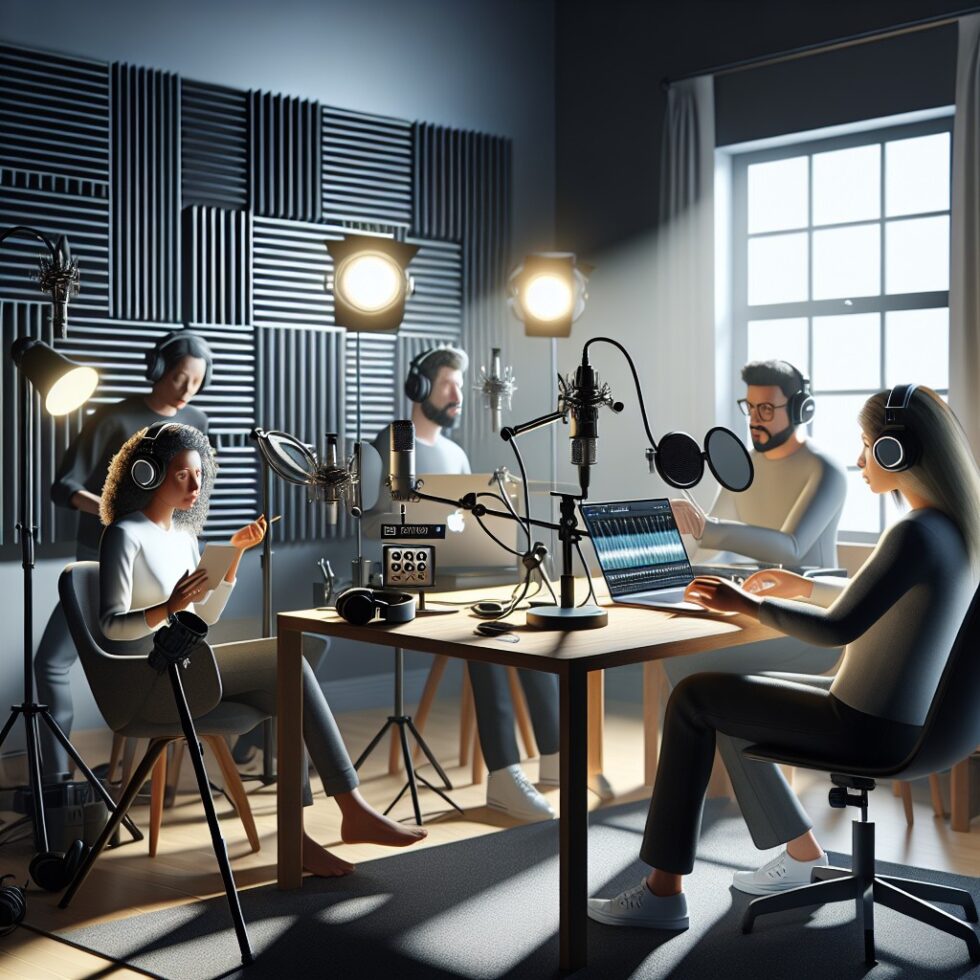
Video can be fuzzy. Slides can be boring. But if your voice is clear, meetings go faster and people trust what you say. The good news: you don’t need a studio or expensive gear to sound great on calls. You need the right mic, sensible placement, a few light room tweaks, and a stable processing chain you can repeat every day.
This guide focuses on practical, repeatable steps for home and small-office conferencing. It avoids hype and studio jargon. If you can set up a webcam, you can implement these tips and get a steady upgrade in clarity without chasing new gadgets every month.
Pick the Right Microphone and Keep It Close
The best noise suppression is a microphone that hears you more than your room. Mic choice matters less than how you position it. But start with the basics:
Dynamic vs. condenser
- Dynamic mics (e.g., cardioid stage mics) are forgiving and reject room noise well. They prefer to be close to your mouth (10–15 cm). They handle less-than-ideal rooms better than condensers.
- Condenser mics are sensitive and can sound airy, but they capture more of the room. If you don’t plan on adding acoustic treatment, a condenser may work against you.
USB vs. XLR
- USB mics are simple and usually good enough. Look for models with cardioid patterns and onboard gain controls. Keep the level knob around the middle and adjust from your OS.
- XLR mics need an interface, but often give you clean gain and latency control. If you already use an audio interface for music, a dynamic XLR mic is an easy upgrade for calls.
Headsets and beamforming mics
- Wired headsets solve echo at the source and keep mic distance constant. They’re the low-friction, no-drama option.
- Beamforming mics in earbuds or laptops can work, but vary widely. If you use them, test them in your actual meeting apps and spaces.
Whatever you choose, keep the mic close, off to the side, and pointed at the corner of your mouth. Use a pop filter or foam windscreen to tame plosives. Distance and directionality beat post-processing every time.
Place It Right and Calm the Room
Most “bad audio” is just reflections. A bare room with hard walls throws your voice back into the mic a few times per word, smearing consonants and fatiguing listeners. You don’t need full treatment—just a few smart, lightweight changes.
Simple placement wins
- Get soft stuff behind and beside you: thick curtains, a fabric couch, a bookcase with uneven spines, or a large rug. These break up reflections without making your room look like a studio.
- Avoid corners: corners amplify reflections. Move your desk a little off the wall if you can.
- Lower the ceiling echo: a hanging fabric panel or even a large canvas with soft backing above your desk helps more than you’d think.
Do the clap test
Stand where you talk and clap once. If you hear a “zing” or a quick flutter, you have reflective slap echo. Add one soft element at a time (curtain, rug, shelf) and clap again. The goal is not a dead room—just less smear. A good target is a short decay that feels “dry” but not dull.
Less is more
Foam squares alone rarely fix speech clarity. Dense curtains near windows, a heavy rug on hard floors, and a bookshelf near the desk tend to beat thin foam on a far wall. Keep it simple and reversible, especially in a multipurpose room.
Build a Clean, Reliable DSP Chain
You don’t need a rack of gear. A short, sensible processing chain improves clarity and keeps you from riding the volume knob mid-meeting. The order below works well for speech:
Recommended chain (in order)
- Input gain: set so your loud speech peaks around -12 dBFS. Avoid hitting 0 dBFS (clipping). If your mic/interface has a meter, aim for green with occasional yellow on emphatic words.
- High-pass filter (HPF): cut rumble below 80–100 Hz for most voices; 120 Hz for higher voices or very noisy rooms.
- Subtle EQ:
- Reduce muddiness: -2 to -4 dB at 150–250 Hz, Q ≈ 1.
- Clarity bump (optional): +1 to +2 dB at 2–4 kHz, Q ≈ 0.7.
- Harshness control (if needed): -2 dB at 4–6 kHz, Q ≈ 1.
- Expander or gentle gate: close softly when you’re silent so keyboards and HVAC don’t dominate. Start with a threshold around -45 dBFS, 2:1 ratio, fast attack (5–10 ms), medium release (100–200 ms). Avoid “chops” that cut off word ends.
- Compressor: even things out without crushing dynamics. Try 2:1 ratio, threshold around -18 dBFS, soft knee, attack 10–20 ms, release 80–150 ms. Aim for 2–4 dB gain reduction on normal speech.
- Limiter: last in line to catch surprises. Set ceiling at -1 dBFS.
Keep noise suppression stages to one if possible. Multiple suppressors tend to fight and produce watery artifacts. If your meeting app has built-in noise suppression and you also run a suppressor in your chain, decide which does better and disable the other.
Echo cancellation: headphones win
Acoustic echo cancellation (AEC) is a marvel, but the easiest path is to wear headphones or a headset, which removes loudspeaker feedback from the equation. If you must use speakers, see the dedicated section below for geometry and software tips. In any case, don’t stack multiple AECs—pick one layer (OS, app, or hardware speakerphone) and stick with it.
OS-Specific Tools That Work
You can build the chain above with native tools on any major OS. Here are steady options that many teams use successfully:
macOS
- Routing: BlackHole (virtual audio device) for loopback routing between apps.
- Processing: Audio Hijack for visual chains (HPF, EQ, compressor, limiter). Use its session templates to standardize settings.
- Settings: Set mic and virtual devices to 48 kHz in Audio MIDI Setup. In each meeting app, pick the virtual device as your mic.
Windows
- Routing: VB-Audio Virtual Cable for virtual I/O between apps.
- Processing: VoiceMeeter for routing/mix and basic dynamics; Equalizer APO (+ Peace GUI) for systemwide EQ and filters.
- Settings: Use 48 kHz where possible. In Sound settings, disable “exclusive mode” unless an app requires it. In meeting apps, select your processed virtual device and turn off additional noise reduction if you’re already running one.
Linux
- Routing: PipeWire with qpwgraph or Helvum to connect nodes.
- Processing: EasyEffects provides input chains with HPF, EQ, gate/expander, compressor, and limiter.
- Settings: Keep sample rate consistent (often 48 kHz). Use the PipeWire echo-cancel module only when you run speakers.
Across all platforms, keep names clear: “Mic Raw,” “Mic Chain,” “Meeting Out.” This prevents choosing the wrong device five minutes into a call.
Hunt Noise at the Source
Fix the cause, not just the symptom. Your chain will work better with fewer problems to solve.
- Mechanical keyboards: Add O-rings or use silent switches. Angle the mic away from the keyboard and use a gentle expander rather than a hard gate so you don’t get choppy tails.
- HVAC and fans: Close a nearby vent partially, relocate a desk fan, and roll off lows with your HPF. Consider a quiet-mode curve for your PC case fans.
- Traffic and street noise: Use a heavy curtain over windows and close doors fully. A cardioid dynamic mic close to your mouth will outperform distant boom arms for this case.
- Electrical hum and clicks: Use balanced XLR for XLR mics and keep USB cables short and away from power bricks. If you hear ground-loop buzz with an XLR interface feeding speakers, try a different outlet or a ground loop isolator on the speaker line.
Remember SafeListening: if you wear headphones for long stretches, keep levels comfortable. Clear audio at moderate volume beats loud audio with noise and fatigue.
Test, Measure, and Keep It Steady
The difference between “good once” and “good always” is testing. You don’t need lab gear—just a repeatable routine.
Baseline checklist
- Consistent mouth-to-mic distance: mark your desk or boom arm so you return to the same position.
- Gain sanity check: talk loudly and watch for peaks around -12 dBFS in your processing app. Nudge interface or software gain to land there.
- Record and listen: make a short loopback recording of your processed signal. Play it back on laptop speakers and earbuds—if clarity holds in both, you’re close.
What to watch in meters
- Short-term loudness: for calls, aim roughly for -20 to -16 LUFS short-term during normal speech. This keeps you audible without clipping or pumping.
- Limiter hits: occasional light limiting is fine; frequent hits mean your compressor threshold is too high or your input gain is too hot.
Network and app realities
Every meeting app does its own thing with bandwidth, noise control, and AEC. After you stabilize your local chain, do test calls in the actual services you use. Disable redundant processing features you’ve replaced locally. If a service forces noise suppression you can’t turn off, simplify your local chain (e.g., skip the expander) to avoid conflict.
If You Must Use Speakers: Tame Echo the Right Way
Headphones are best, but sometimes you want a screen-only meeting with room audio. You can get stable echo control with careful layout and one good AEC.
Geometry matters
- Nearfield speakers: keep them close and quiet—30–60 cm from you at low volume. The shorter the path from speaker to mic, the easier the canceler’s job.
- Mic placement: keep the mic near your mouth and further from the speakers. Point the mic’s null (back of a cardioid) toward the speakers.
- Surfaces: place soft material behind speakers to cut early reflections into the mic.
Pick one AEC
- Hardware speakerphone (e.g., a dedicated USB puck): usually ships with integrated AEC. If you use this, turn off app/OS AEC.
- App/OS AEC: if you rely on the meeting app’s echo canceler, don’t run extra system-level echo cancellation. Double cancelers can distort speech and still leak echo.
Keep playback volume as low as is comfortable and avoid sudden level jumps (mute notification sounds, reduce OS alerts). Stable levels make AECs happy.
AI Noise Suppression Without the Robot Voice
Modern AI denoisers can perform miracles on keyboard clacks and street noise, but they come with trade-offs. Use them thoughtfully:
- Choose one stage: run a single high-quality suppressor like RNNoise-based tools, an OS-level module, or a GPU-powered option. Stacking two often creates watery or swishy artifacts.
- Tune thresholds: if your tool allows, set conservative sensitivity. Let a little room through rather than nuking consonants.
- Watch CPU/GPU load: on older laptops, heavy real-time suppression can spike fans (ironically adding noise). Lightweight models often suffice for speech.
- Privacy note: prefer on-device processing when possible so your raw audio doesn’t leave your machine.
If you’re already using a close dynamic mic plus HPF and expander, you may find you need only mild suppression—or none at all.
Keep It Consistent With Profiles and Labels
Schedule beats willpower. Once you dial in your chain, lock it down:
- Save presets in your processing app per scenario: “Headphones,” “Speakers + AEC,” “Travel Headset.”
- Label devices clearly (“Mic Raw,” “Mic Chain,” “Meeting Out”) and pick them in your collaboration apps. Stick a note near your monitor with the correct selection.
- Do a quick preflight before important calls: watch the chain’s meters, do a 10-second test recording, and verify levels in the app’s meter.
Common Problems and Fast Fixes
“People say I’m quiet”
- Move the mic closer (10–15 cm), increase interface gain slightly, or lower the expander threshold so you’re not gating too hard.
- Check app input volume and OS privacy settings—some apps grab the wrong device.
“It sounds like I’m underwater”
- You’re probably running two noise suppressors. Disable one. If you must keep both, make the second very light.
- Reduce compression and check your limiter—over-compression can smear consonants.
“I hear myself”
- Turn off app echo cancellation if using a hardware speakerphone with AEC, or wear headphones.
- Lower speaker volume and increase mic-to-speaker distance. Point the mic’s null toward the speakers.
“Clicks and pops appear randomly”
- Set a consistent sample rate (48 kHz) across devices and apps. Avoid sample-rate mismatches.
- Swap USB ports or cables; use a powered hub if your interface under-volts. Keep audio I/O on a direct port if possible.
“Keyboard is still loud”
- Angle the mic away from the keyboard, use an expander with a gentle ratio, and add O-rings or swap to silent switches.
- Type softer during others’ turns, and rely on push-to-talk for critical moments.
A Minimal, Reliable Setup You Can Build Today
Here’s a proven, low-complexity recipe that keeps you out of the rabbit hole:
- Hardware: entry-level dynamic USB mic with foam windscreen on a small boom arm; wired headphones for daily calls.
- Room: rug under your chair, curtain on the closest window, and a bookcase or fabric wall hanging at your side.
- Chain: input gain → HPF (100 Hz) → mild EQ (clean up 200 Hz, +1 dB at 3 kHz) → expander (2:1) → compressor (2:1, -18 dBFS threshold) → limiter (-1 dBFS).
- Software: platform-specific routing with one virtual device; store preset and reuse daily.
- Practice: weekly 30-second test recording; adjust only if something drifted.
This path avoids gear churn, reduces surprises, and lets you focus on your work instead of your signal chain.
Why This Works
Clarity comes from signal-to-noise ratio, stable levels, and fewer surprises. A close, directional mic raises your voice above the room. Light treatment cuts smearing. A short chain tames rumble, evens dynamics, and prevents clipping. Headphones or a single AEC keep echo in check. Consistent sample rates and named devices stop gremlins from sneaking in at 8:59 AM.
The result is steady, confident presence on every call—no wizardry, just small choices that stack.
Summary:
- Use a close, directional mic; distance and placement beat heavy processing.
- Calm reflections with simple, reversible room tweaks: rugs, curtains, bookcases.
- Run a short DSP chain: gain → HPF → subtle EQ → expander → compressor → limiter.
- Prefer headphones; if using speakers, pick one echo canceller and keep levels low.
- Standardize tools per OS and keep sample rates consistent (aim for 48 kHz).
- Fix noise at the source: quieter keyboards, tamer fans, balanced cables.
- Test weekly with a quick recording and meter check; label devices to avoid misroutes.
- Use at most one AI noise suppressor to avoid watery artifacts.