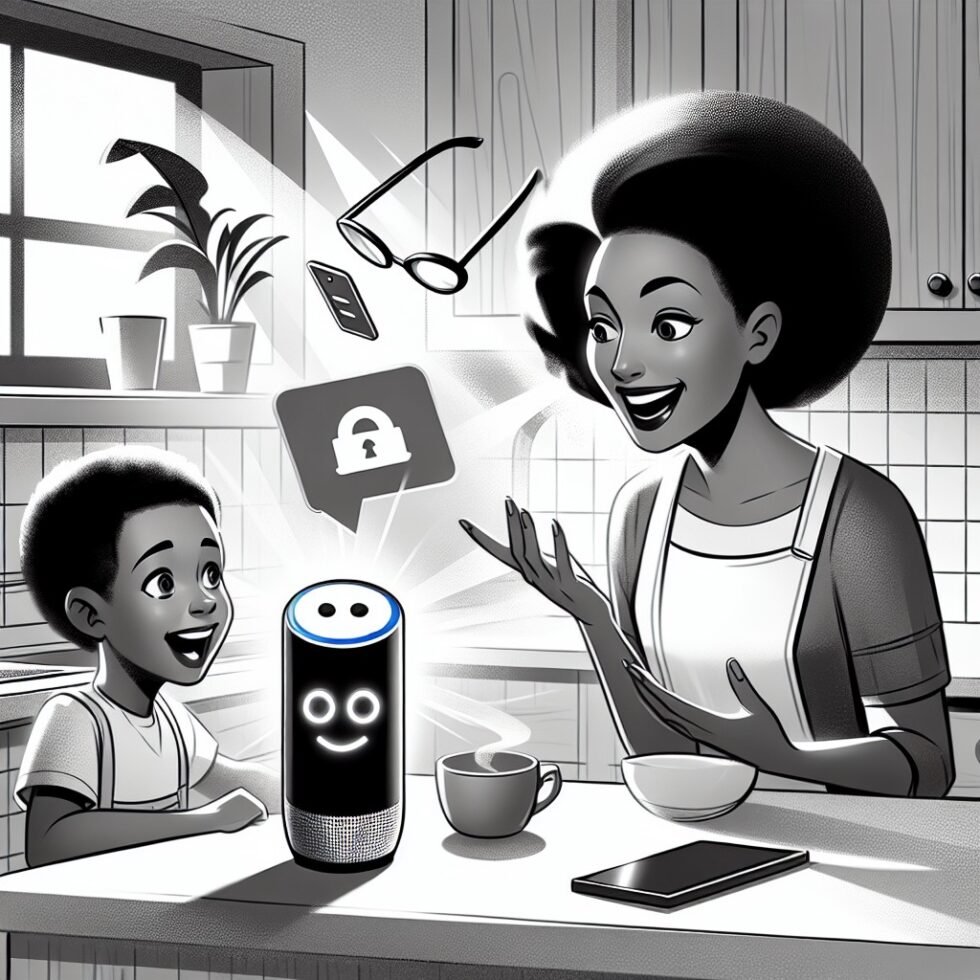
Generative AI is now a part of everyday life, including for kids. It can help with practice questions, explain tricky topics, or spark creativity. But open‑ended chat tools aren’t built for young users by default. You don’t want a system that wanders off topic, shares personal data, or invents answers that look convincing. The fix isn’t a single “kid mode” toggle. It’s a layered setup you can run at home: private by design, supervised by adults, and tuned for learning.
This guide shows how to build a kid‑safe AI assistant that runs on a laptop or small PC on your network. We’ll cover architecture, guardrails that work in practice, real‑world setup steps, and how to keep it maintainable. The goal: a helper your family can trust and verify, not just hope behaves.
What “kid‑safe AI assistant” actually means
Before diving into hardware and models, get the targets right. “Safe” should be defined, measurable, and visible to both kids and parents.
- Age‑appropriate content: Answers match your child’s reading level and maturity. Sensitive topics are handled carefully or escalated.
- Privacy by default: No cloud uploads without consent. No surprise data collection. Minimize what gets stored; encrypt what you keep.
- Supervised use: Clear rules, per‑kid profiles, and a parent console for reviews and adjustments.
- Limited autonomy: The assistant can retrieve facts from a curated, offline knowledge base. It should not run code, control devices, or browse the open web unless specifically approved.
- Transparent behavior: The assistant tells kids what it can and can’t do. It cites sources for factual questions and says “I don’t know” when unsure.
- Accountability: Chat transcripts are available to parents; flagged messages trigger alerts. You can audit changes to rules and prompts.
An architecture that works at home
There’s no single right stack, but certain patterns consistently help. Think of your system as a “safety sandwich”: pre‑filters → assistant → post‑filters, all inside a supervised envelope.
Local vs. cloud vs. hybrid
Local: Run a small language model on a laptop or mini‑PC. You get speed, privacy, and predictable costs. Tools like Ollama or llama.cpp make this practical. Choose quantized models that fit your hardware. Start small and upgrade later.
Cloud: Managed APIs can provide stronger reasoning or safety features, but add cost and data flow to third parties. If you use cloud, enable strict safe‑mode options and scrub personal data before sending prompts.
Hybrid: Default to local. Fall back to cloud only for specific, parent‑approved tasks (for example, a science explanation at a higher reading level). Make that fallback visible to the user.
The safety sandwich
- Pre‑filters: A lightweight classifier checks the request for disallowed topics, unsafe intent, or attempts to share personal info. It can also rewrite the prompt for clarity (“Ask me step by step about…”) and enforce reading level.
- Assistant core: The model and prompt template that set behavior. Use a short, strict system prompt instead of a long, hand‑wavy essay. Include ground rules, escalation paths, and style guidelines.
- Post‑filters: Validate the response: check for banned terms, unsafe instructions, or hallucinated facts. Optionally, run fact‑checking against a curated encyclopedia. If validation fails, return a gentle refusal or a parent‑approval flow.
Identity and roles
Create a separate profile for each child with their own reading level, allowed topics, and time limits. Tie identity to device user accounts (macOS Screen Time or Android Family Link) and your assistant’s login. Ensure logs record which profile made each request. Parent accounts can view, export, and delete transcripts.
Build your first setup in an afternoon
Below is a practical, end‑to‑end starter plan. You can expand it later, but this gets you to a safe baseline in a day.
1) Set network guardrails
- Family DNS filtering: Point your router to a family‑safe resolver (OpenDNS FamilyShield, AdGuard Family, or your own Pi‑hole with community blocklists). Enforce SafeSearch at the router if possible.
- Device profiles: On iOS/macOS, enable Screen Time with app limits and content restrictions. On Android/Chromebooks, use Family Link. On Windows, set Microsoft Family Safety. These controls don’t replace your assistant’s rules—they complement them.
2) Run a local model
- Host: A recent laptop or compact PC (8–16 GB RAM) is enough for small quantized models. Keep it on your home network behind your router’s firewall.
- Serving: Install Ollama or llama.cpp. Pick a small instruction‑tuned model known to be stable at low compute. Start with conservative temperature and short max tokens.
- Knowledge base: Add a curated, offline source: a kids’ encyclopedia, your family’s approved PDFs, and class notes. Index with a simple embedding store; disable web search by default.
3) Build a simple UI with a parent console
- Web chat: Host a local web page on the same machine. Show who’s logged in, and whether cloud fallback is off/on.
- Parent console: Switch profiles, set reading level, change allowed topics, and view flagged transcripts.
- Storage: Save transcripts locally, encrypted at rest. Add a clear “Delete all” button and a retention period (for example, 30 days).
4) Write a strict system prompt
Keep it short and testable. For example:
You are a helpful tutor for [Name], age [X]. You answer at a [grade] reading level. If a question seems unsafe, personal, or adult‑only, gently refuse and suggest asking a parent. You never browse the web or run code. You cite sources from the approved library. If unsure, say “I’m not sure” and ask a clarifying question.
Avoid promising things you can’t enforce. Use the system prompt for rules, not “vibes.”
5) Add pre‑ and post‑filters
- Pre‑filter: Check the request for PII (full name, home address, school name, phone), self‑harm, adult content, or illegal activity. If found, either block or route to a parent‑approval flow. Also normalize the reading level (“Explain as if to a 4th grader”).
- Post‑filter: Validate safety again. Add a fact check pass that highlights claims lacking a citation from your library. If validation fails, respond with a gentle refusal plus a safe alternative.
6) Limit or sandbox tools
- Default: no tools. Turn off browsing, code execution, and file write access.
- Approved tools: If you enable a dictionary, calculator, or encyclopedia search, run them inside a locked container with strict allowlists and timeouts. Prefer offline databases over the open web.
7) Add feedback and alerts
- Kid feedback: Simple thumbs‑up/down per answer and a “Was this confusing?” button.
- Parent alerts: Email or mobile notification for flagged content, escalations, or repeat refusals on sensitive topics.
Concrete guardrail recipes that hold up
Good guardrails are specific, testable, and friendly. Here are building blocks you can mix and tune.
Age‑appropriate content bands
- Reading level: Target grade bands rather than exact grades (for example, K–2, 3–5, 6–8). Constrain sentence length and vocabulary lists per band.
- Topic filters: Allow science, math, history, arts. Disallow explicit violence, adult relationships, alcohol, and gambling. For nuanced topics (history, health), require neutral tone and clear sourcing.
PII protection in practice
- Detect PII patterns: Full name plus school, address fragments, phone numbers, emails, usernames, and GPS coordinates. Keep a short allowlist (first name only is okay).
- Never echo back PII: If a child enters sensitive info, mask it immediately and remind them not to share such details. Store a masked version only.
- Consent gates: If a legitimate use needs PII (for example, preparing a field trip packing list that includes your school name), require a parent PIN to unmask for that one response.
Hallucination and misinformation hygiene
- Source or say “I don’t know”: When answering factual questions, cite from your approved library. If no match is found, the assistant must say it’s unsure and suggest a safe place to look together.
- Claim checks: Post‑filter for “high‑risk” verbs (cures, guarantees, secret tricks). Nudge toward safer phrasing (“may help,” “often used,” “according to [source]…”).
Handling sensitive topics kindly
Kids will ask about health, feelings, or scary news. The assistant should be supportive but defer to adults and professionals when appropriate.
- Supportive language: Validate feelings and suggest talking to a trusted adult.
- Escalation path: If a self‑harm or abuse signal appears, provide crisis resources as configured for your region, stop the chat, and alert a parent.
- Medical or legal questions: Provide basic definitions with neutral tone and suggest asking a parent or teacher for detailed advice.
UX patterns that help kids learn
Safety is table stakes. Great UX turns the assistant into a learning partner.
Explain, don’t just answer
- Show steps: For math and science, encourage the assistant to outline steps, not just give results.
- Ask back: When a question is vague, prompt the child with one clarifying question at a time.
- Offer choices: Provide two explanation styles (analogy vs. example) and ask which helped more.
Make effort visible
- “Try it” prompts: After an explanation, invite the child to try a short practice question and get feedback.
- Progress, not points: Celebrate attempts and growth. Avoid extrinsic rewards that can distract.
Respect time and attention
- Time‑boxed sessions: End with a short recap and suggest an offline activity (draw a diagram, label a map).
- Quiet mode: No notifications, animations, or popups while studying.
Measuring and maintaining safety
What you measure improves. Build a simple dashboard for ongoing checks.
Key metrics
- Refusal accuracy: How often the assistant correctly refuses unsafe or out‑of‑scope requests.
- Over‑blocking rate: Safe questions wrongly blocked (frustrating but fixable by rule tuning).
- Under‑blocking rate: Unsafe content that passed filters (treat as P1 bugs).
- Citation coverage: Percent of factual answers with a source attached.
- Escalations: Number of parent alerts, by category, per week. Sudden spikes deserve review.
Red‑team and regression tests
- Canary prompts: A fixed set of tricky questions you run after any model or rule change to catch regressions.
- Age‑band fuzzing: Test that reading levels actually change vocabulary and sentence length.
- PII drills: Try sharing personal details in various formats (abbreviations, emojis) and confirm redaction holds.
Privacy and data retention
Trust is easier to lose than to earn. Build privacy into the bones of your setup.
- Local first: Keep transcripts and embeddings on your home machine. Encrypt the storage volume.
- Minimal logs: Store timestamp, profile, and redaction state. Don’t keep raw PII. Masked by default.
- Short retention: Auto‑delete after a set period. Offer one‑click export for parents.
- Clear cloud rules: If any cloud fallback is enabled, disclose it in the UI each time it’s used. Remove personal details before sending requests.
Scaling up: classrooms, clubs, and extended family
If your setup grows, avoid big rewrites by using light modularity from the start.
- Profiles as policy files: Store settings as readable files (YAML/JSON) with age band, topics, and device list.
- Network segmentation: Place the assistant server on a VLAN with strict firewall rules and no inbound internet access.
- Role‑based access: Teacher/parent accounts can adjust policies; kids can’t change rules.
- Updates: Schedule upgrades during off hours. Run canary tests before rolling out to all users.
Troubleshooting common issues
The assistant gives wrong or weird answers
- Lower temperature, shorter responses: Reduces rambling and speculation.
- Improve knowledge base: Add better sources; remove low‑quality PDFs.
- Tighten system prompt: Replace vague instructions with concrete rules.
Too many safe questions get blocked
- Tune filters: Reduce sensitivity for certain topics; add safe synonyms to allowlists.
- Grade bands: Move from K–2 to 3–5 for a child who’s ready, but keep topic limits.
Performance is slow
- Use a smaller model: Try a more compact quantization.
- Limit context size: Keep histories short; summarize older turns.
- Cache: Cache frequent encyclopedia lookups and summaries.
Parents are overwhelmed by alerts
- Daily digests: Bundle low‑severity flags into a single summary.
- Three‑strike threshold: Only alert immediately after repeated attempts in a sensitive category.
Checklist: the pieces you actually need
- Hardware: One laptop or mini‑PC with 8–16 GB RAM on your home LAN.
- Local model server: Ollama or llama.cpp hosting a small instruction‑tuned model.
- Curated content: A vetted kids’ encyclopedia and class notes, indexed offline.
- Web UI: A simple chat page plus a parent console with profile controls and logs.
- Filters: Pre‑ and post‑filters for PII, safety categories, and basic fact checks.
- Network guardrails: Family DNS filtering and device‑level content controls.
- Policies: Age‑band reading levels, allowed topics, clear refusal patterns, escalation paths.
Why this approach works
Kids need an assistant that is predictable, not performative. The combination of local execution, tight scope, and visible supervision yields a tool that earns trust. Local first protects privacy. Strict prompts reduce surprises. Pre/post filters catch edge cases. Profiles tailor help to the child, not a generic demographic. And a parent console turns AI from a black box into something your family can steer.
Summary:
- Define “kid‑safe” clearly: age‑appropriate, private, supervised, and accountable.
- Use a “safety sandwich”: pre‑filters, a strict assistant core, and post‑filters.
- Run locally by default; only use cloud for parent‑approved, visible fallbacks.
- Set up network and device guardrails first, then add the assistant on top.
- Create per‑child profiles with reading levels, topic allowlists, and time limits.
- Keep tools off by default; sandbox any approved tools with allowlists and timeouts.
- Measure safety with refusal accuracy, block rates, citation coverage, and escalations.
- Store transcripts locally, encrypted, with short retention and easy deletion.
- Use a parent console for oversight, alerts, and quick policy changes.
- Iterate with canary prompts, red‑team tests, and small, safe updates.
External References:
- Google Family Link
- Apple Screen Time: Use Screen Time on your iPhone, iPad, or iPod touch
- Pi‑hole: Network‑wide Ad Blocking
- OpenDNS FamilyShield
- Cloudflare: DNS over HTTPS
- Ollama: Run LLMs locally
- llama.cpp on GitHub
- Docker Security: seccomp
- Firejail: Linux sandbox
- Common Sense Education: Digital Citizenship
- NIST AI Risk Management Framework