
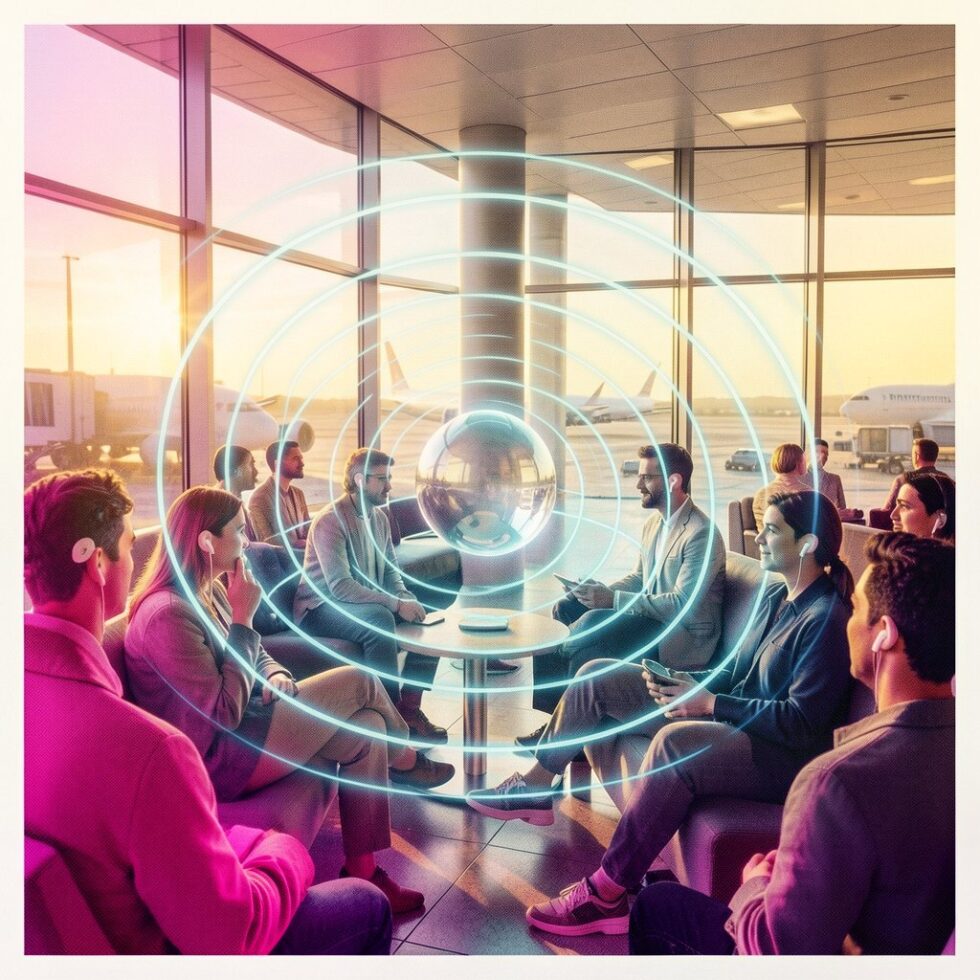
Bluetooth isn’t just for pairing one phone to one pair of earbuds anymore. Auracast—the broadcast feature built on Bluetooth LE Audio—lets a single transmitter share audio with many listeners at once. Think silent TVs at the gym, multi-language tours, classrooms where everyone hears the teacher clearly, or a living room where two people watch the same show with private volume. The catch is that real-world deployments need a bit of planning to work smoothly.
This guide shows you how to use Auracast as a listener and how to set it up as a broadcaster. We’ll cover device support, sound quality, latency, security, signage, and RF hygiene so your broadcasts are easy to find and pleasant to hear.
Why Auracast Matters Now
Auracast turns Bluetooth into a one-to-many audio medium. Instead of pairing a device with a single headset, a transmitter announces a public or passcode-protected audio stream that anyone nearby can join. It’s built on LE Audio features like the LC3 codec and broadcast isochronous streams (BIS), which bring lower power use, robust audio at moderate bitrates, and more flexible topologies than classic Bluetooth.
In practice, that means:
- Friction drops: Join audio from a venue or TV with a tap—no Wi‑Fi portal, no pairing dance.
- Personal volume and EQ: Each listener sets their own level and tuning without affecting others.
- Assistive listening without extra hardware: Many people can use their own earbuds or hearing aids.
- Multi-language and program feeds: A museum can offer multiple narrations; a church can offer translations.
- Battery-friendly sessions: LE Audio is designed for long listening without frequent charging.
Adoption is accelerating as new phones, earbuds, hearing aids, TVs, set-top boxes, and dedicated transmitters add support. You’ll still see “Auracast-ready” labels while firmware catches up, so it’s worth checking roles and versions before you buy or deploy.
What You Need as a Listener
Device support checklist
To receive Auracast, you need:
- Phone or earbuds/hearing aids with LE Audio and Auracast Receive. Many contemporary Android phones and select earbuds support it now; some platforms are still rolling it out.
- OS features or an app that scans for broadcasts. On supported Android builds, Quick Settings or Accessibility menus may include “Audio broadcast” or “Hearing devices.” Some vendors bundle a companion app that discovers nearby Auracast channels.
- Optional: passcode if the broadcaster has enabled a Broadcast Code for semi-private streams.
Signs that you’re ready include LC3 listed in specs, mentions of LE Audio, and explicit “Auracast” receive support. If you only see classic Bluetooth codecs (SBC, AAC, aptX) with no LE Audio, your device likely won’t discover Auracast streams.
How to join a broadcast
The exact steps vary by device, but the flow is consistent:
- Open your device’s broadcast scanner (Quick Settings toggle, Accessibility settings, or a vendor app).
- Look for nearby Auracast channels. They will show names like “Gate 12 Announcements,” “Court 4 TV,” or “Tour—Spanish.”
- Tap to join. If required, enter the broadcast code posted on the sign or QR page.
- Adjust volume to a safe level. Many devices include hearing safety prompts; heeding them is wise.
If nothing appears, you may be out of range, the broadcaster might be off, or your device may not support Auracast receive. Try moving closer or checking a second device.
Broadcasting: The Practical Playbook
Choose your transmitter wisely
You can broadcast from:
- Dedicated Auracast transmitters that accept analog or digital audio (optical, HDMI ARC, USB) and advertise one or more channels.
- Phones, TVs, or PCs with LE Audio stacks that support the Auracast Broadcast role.
- Pro audio gear or DSPs with integrated LE Audio modules for venues.
For stable venue use, dedicated transmitters are the safe bet. For home or small rooms, a TV or set-top box with Auracast Broadcast can be enough.
Map your use cases to zones and channels
Each distinct place or program usually needs its own channel:
- Homes: “Living Room TV,” “Bedroom TV.”
- Gyms: “Row 1 TVs,” “Main Floor TVs,” “Studio A Instructor Mic.”
- Venues/education: “Stage Program,” “Translation—English,” “Translation—Spanish,” “Overflow Room.”
- Airports or transit: “Gate 12 Announcements,” “Gate 14 Announcements,” “Club Lounge TV.”
Give each channel a clear, human-readable name that matches signage. If you run multiple channels in one room, add a short code (e.g., “Court 3 TV — C3T”).
Audio pipeline basics
What you feed the transmitter matters more than you think:
- Input level: Aim for strong, clean input. If your transmitter has meters, target green with occasional yellow peaks, not solid red.
- Latency path: Lip-sync depends on end-to-end delay. Avoid unnecessary format conversions and oversize buffers.
- Mono vs stereo: For speech (lectures, announcements), mono is fine and saves bitrate. For TV and music, stereo is preferred.
Latency: what’s realistic and what’s tolerable
LE Audio’s LC3 codec is efficient. With Auracast, codec and radio latency can be on the order of tens of milliseconds, but end-to-end latency also includes capture, DSP, buffering, and endpoint processing. In real deployments:
- Speech and announcements: 30–80 ms feels instant to listeners.
- TV lip-sync: Try to keep total latency under ~120 ms for most viewers to perceive sync as acceptable.
- Live performance monitoring: The threshold can be tighter. Keep rig paths short and avoid heavy DSP where possible.
Many consumer TV transmitters already optimize for lip-sync. In venues, test a sample of listener devices; not all earbuds and hearing aids buffer the same way.
RF and Coexistence: Make the 2.4 GHz Band Your Friend
Auracast lives in 2.4 GHz, sharing space with Wi‑Fi, classic Bluetooth, and other devices. Reliable coverage needs modest planning.
Site survey and placement
- Do a quick walk-test: Use a BLE scanner app to spot RSSI drops, and try multiple listener devices in the corners and aisles.
- Mount transmitters high and central to reduce human-body attenuation and line-of-sight issues.
- Avoid metal enclosures or putting the transmitter behind displays where it’s shadowed.
Power and overlap
- Use the lowest transmit power that covers your zone. Overpowered beacons bleed into adjacent zones and confuse listeners.
- Stagger nearby zones on different, non-overlapping BIS configurations if your gear allows it. Keep channel count modest per room.
- Label zones clearly so listeners pick the right stream even if they see several.
Coexistence with Wi‑Fi
- Separate APs and transmitters physically: Don’t zip-tie them to the same pole if you can help it.
- Optimize Wi‑Fi: If 2.4 GHz Wi‑Fi is saturated, move heavy clients to 5 GHz or 6 GHz. Less 2.4 GHz noise benefits everything.
- Monitor over time: Congestion changes by hour and season. Revisit your site survey after peak traffic days.
Security, Privacy, and Etiquette
A public broadcast is, by definition, meant to be discoverable. But you still need sensible boundaries.
- Broadcast Codes: Use a passcode for semi-private rooms (e.g., corporate meetings, classrooms) to keep casual eavesdroppers out.
- Signage clarity: Post what the channel carries, where it applies, and whether a code is required. Include simple join steps.
- Data hygiene: You aren’t collecting personal data by default, and you shouldn’t try. Avoid adding trackers to QR pages beyond basic page analytics.
- Content appropriateness: Assume families and children may listen. Keep streams clean and lawful.
- Hearing safety: Encourage safe listening and consider volume limiting in children’s areas.
Signage and Discovery That Don’t Confuse People
Even perfect RF can fail if nobody knows how to join. Good signage makes Auracast feel like magic.
- Use a consistent icon and name across screens, posters, and maps.
- Keep join instructions to three steps. “Open Broadcast Audio → Tap ‘Gate 12 Announcements’ → Adjust volume.”
- Offer a QR code fallback that opens a help page with device tips and the broadcast code if needed.
- Local maps: For large venues, show zones on a simplified floor map.
- Language labels for multi-channel rooms, ideally using both language names and ISO codes (e.g., “Español (ES)”).
Assistive Listening: Auracast vs. Loops, FM, and IR
Assistive listening in public venues isn’t new. Induction loops, FM, and infrared systems are proven. Auracast adds three advantages:
- Bring your own device: Many listeners can use their own earbuds or hearing aids.
- Flexible zoning and languages: One transmitter can serve multiple programs or translations.
- Lower maintenance burden: Fewer loaner receivers to sanitize and charge.
That said, loops still shine for hearing aids with telecoils, especially in existing looped rooms where adoption is high. A practical path is hybrid: keep the loop where installed and add Auracast for everyone else. Over time, as hearing aids with LE Audio proliferate, Auracast may cover the majority.
Home Setups That Just Work
Silent TV for late-night viewing
Connect a small Auracast transmitter to your TV’s optical output and name the channel “Living Room TV.” Now anyone with compatible earbuds can listen at their own volume. Add a second transmitter for “Bedroom TV” if needed, and keep input gain calibrated to avoid clipping during loud scenes.
Work-from-home calls without echo
Broadcast your call audio from a PC with LE Audio and have a second person listen in from their earbuds in the same room. Use a Broadcast Code if you want to keep the audio semi-private.
Backyard movie night
Projectors and portable speakers are fun, but neighbors may prefer quiet. An Auracast transmitter gives your guests a shared stream they can enjoy on personal earphones. Label it with the movie title and date so it’s easy to find.
Office and Classroom Patterns
Conference rooms
- Default to a passcode for meetings.
- Mount the transmitter near the display and feed it audio post-DSP to keep latency contained.
- Post a small placard by the screen with the channel name and join steps.
Lecture halls
- One speech channel fed from the instructor mic.
- Optional recording channel with a slightly different mix (if policy allows).
- Translation channels for multilingual classes or guest lectures.
Events, Gyms, and Venues
Gyms
Designate streams per TV row or zone. Keep power contained so a listener on the treadmills doesn’t see the free-weight area’s streams from across the building. Periodically test during peak hours.
Houses of worship and theaters
Offer a main program stream and optional translations. For hard-of-hearing members, publish a help page that compares your Auracast option with existing loop or FM receivers and where to find assistance on-site.
Museums and tours
Curate short, labeled streams by exhibit, or a single stream that follows the tour path. QR codes near exhibits can include the broadcast code if needed and link to transcripts for accessibility.
Configuration: LC3 Settings That Make Sense
LC3 scales bitrate and frame size to trade bandwidth for quality and resilience. If your transmitter exposes options, start with:
- Speech: Mono, moderate bitrate (e.g., 96 kbps total), small frames for lower latency.
- TV/music: Stereo, higher bitrate (e.g., 160–192 kbps total), still within LE Audio norms.
- Unreliable RF: Slightly shorter frames and modest bitrate to improve robustness at range.
Most consumer gear auto-tunes this, but pro transmitters give you knobs. Listen before you lock a profile, and sample multiple earbuds and hearing aids, not just studio monitors.
Operations: Keep It Running Without Babysitting
Channel hygiene
- Name consistently across devices and signage.
- Audit monthly for stale names (“Holiday Show 2025” lingering in spring), and update.
- Rotate passcodes for semi-private rooms when staff change or events end.
Firmware and inventory
- Track firmware versions of transmitters and update during low-traffic windows.
- Keep a spare transmitter for each critical zone.
- Document power settings and placement so replacements don’t amplify too much or too little.
Troubleshooting checklist
- No streams visible? Power-cycle the transmitter, verify the input is active, and check that broadcast mode (public/passcode) is set as intended.
- Choppy audio? Reduce transmit power overlap, move the transmitter higher, and test during peak Wi‑Fi use to see if it’s a coexistence issue.
- Lip-sync complaints? Shorten the capture path, ensure audio is taken closest to the source, and avoid long buffering in DSP chains.
Costs and ROI
Compared to legacy assistive listening systems, Auracast shifts cost from loaner receivers to the transmitter and signage:
- Home-grade transmitters: Often under a couple hundred dollars per TV.
- Venue-grade transmitters: Typically a few hundred to low four figures, depending on inputs and channel count.
- Signage and setup: Modest printing and mounting costs; one-time configuration time.
- Receivers: Zero if listeners use their own earbuds or hearing aids; keep a few loaners for guests without compatible gear.
The soft ROI shows up in better experiences (clearer audio, personalized volume), fewer support tickets, and, for venues, broader inclusivity without maintaining a fleet of receivers.
Privacy, Safety, and Policy Notes
Public broadcasts are discoverable by design. Use Broadcast Codes when you expect semi-private listening, and keep content appropriate. For hearing safety, post reminders and use built-in volume limiters where available. If you record or rebroadcast content, follow your local laws and venue policies. These practical steps are enough for most deployments without getting buried in legalese.
What’s Next: Where Auracast Is Headed
As more devices ship with LE Audio, expect Auracast to show up in places you already sit: gates, gyms, classrooms, coworking spaces, and living rooms. We’ll likely see tighter integration with public address systems, real-time captions alongside audio, and better multi-source switching in earbuds so users can hop between broadcasts and phone calls gracefully. AR glasses and spatial audio rigs can also ride Auracast to provide location-aware mixes without tethering cables to your head.
Field-Proven Recipes
Small venue starter kit
- One venue-grade Auracast transmitter with optical and analog in.
- Mount 2–3 meters high, central to seating.
- Name: “Main Program” and (if needed) one translation channel.
- Post a simple sign: “Open Broadcast Audio on your device → Tap Main Program → Adjust volume.” Include a QR code to a help page.
- Walk-test seats with two different earbuds and one hearing aid.
Gym TV retrofit
- Per TV row: one transmitter fed from the row’s HDMI splitter or optical out.
- Names: “Row A TVs,” “Row B TVs.” Keep power low to avoid cross-row confusion.
- Wall labels on each row with channel name and join steps.
Home dual-listening
- Consumer Auracast transmitter on TV optical output.
- Channel “Living Room TV.”
- Keep the TV speakers on low for others, while two people listen on earbuds at their own volumes.
Common Pitfalls (and Easy Fixes)
- Pitfall: Streams named “Default” or “Device123.” Fix: Rename to something obvious and unique to the room.
- Pitfall: One transmitter trying to cover an entire building. Fix: Split into zones, lower power, mount centrally per area.
- Pitfall: Lip-sync drift after adding a DSP recorder. Fix: Feed the transmitter pre-recorder or use a lower-latency tap.
- Pitfall: Staff don’t know how to help listeners. Fix: A one-page runbook and a test earbud at the front desk go a long way.
Summary:
- Auracast lets one transmitter stream audio to many listeners without pairing.
- Check for LE Audio and explicit Auracast receive support on phones, earbuds, and hearing aids.
- Use clear channel names, concise signage, and optional passcodes for semi-private rooms.
- Plan zones and power to avoid RF overlap; mount transmitters high and central.
- For speech, mono and moderate bitrate work well; for TV/music, use stereo and test lip-sync.
- Hybrid assistive listening (loops plus Auracast) covers more listeners during the transition.
- Start small: one reliable transmitter, good signage, and a short walk-test beat fancy features.
Related Reading
- deploying Auracast in real venues — related guide.
- Bluetooth Auracast and LE Audio — related guide.