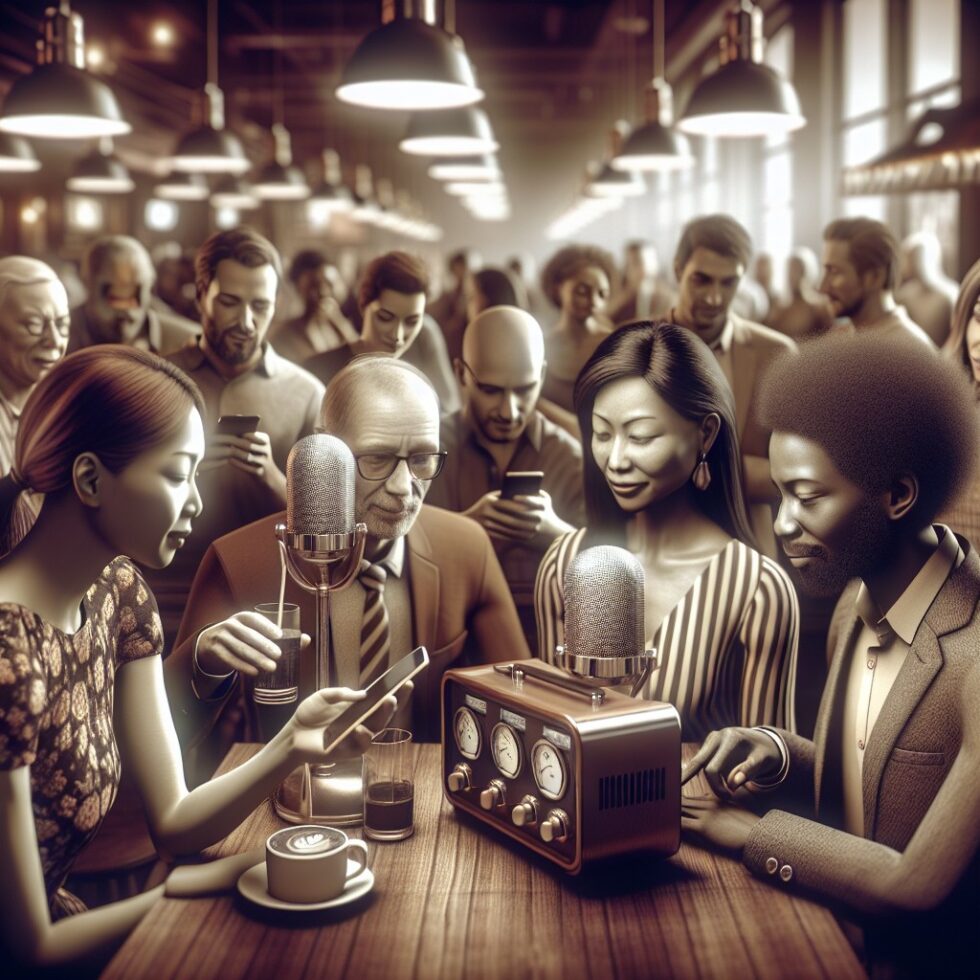
People already carry the best assistive listening device you could ask for: their own earbuds and hearing aids. Auracast, the broadcast feature of Bluetooth LE Audio, finally lets venues use that reality instead of fighting it. With the right setup, your theater, airport gate, gym, gallery, lecture hall, house of worship, or factory floor can transmit clear, low‑latency audio to any compatible listener nearby—without distributing or sanitizing shared headsets, and without installing copper around your floors.
This article is a practical playbook for deploying Auracast in real spaces. It covers planning, coverage, latency and lip‑sync, naming and access, accessibility, coexistence with Wi‑Fi, staff training, and metrics. It’s vendor‑neutral and aimed at teams that want to move from pilot to production with fewer surprises.
What Auracast Actually Is
Auracast is a standardized way to broadcast audio over Bluetooth LE Audio. Instead of pairing one headset to one phone, a venue can transmit an audio program that many nearby listeners can discover and join. It’s built on LE Audio’s isochronous channels and the LC3 codec, delivering robust quality at low bitrates and power.
Key terms you’ll hear (and what matters)
- Broadcast Source: The device that sends audio over the air (a dedicated transmitter, a TV with LE Audio, or a gateway).
- BIG/BIS: A Broadcast Isochronous Group contains one or more Broadcast Isochronous Streams—think “channel bundle” and the streams within it (e.g., multiple languages).
- Periodic Advertising: The discovery beacons that let listeners find your broadcast. Assist apps can also share these “join hints.”
- Broadcast Code: An optional passphrase that encrypts the stream. Use it for ticketed events or staff‑only channels.
You do not “pair” to Auracast. Listeners scan, see a list of broadcasts, optionally enter a code, then join—often in a couple of taps via an “assistant” app or OS UI on supported devices.
Where It Shines (and Why Teams Are Rolling It Out)
In practice, Auracast works best wherever many people could benefit from personal, intelligible audio while keeping the space quiet:
- Theaters and cinemas: Descriptive audio, assisted listening, and multilingual tracks in sync with the screen.
- Airports and stations: Gate announcements people can actually hear, without blasting the hall.
- Gyms and sports bars: Pick a TV and listen to the commentary without crosstalk between tables.
- Museums, galleries, and tours: Hands‑free, self‑guided audio without distributing receivers.
- Lecture halls and classrooms: Clear voice pickup for students, with channels per room or subject.
- Worship and community centers: Assistive audio and translation that people can join on their own devices.
- Factories and warehouses: Safety and training audio in noisy spaces while keeping PA systems uncluttered.
For these uses, the advantages stack up: no batteries to manage for loaner headsets, fewer hygiene concerns, simple reuse across rooms, and the ability to add channels quickly for events or languages.
Plan the Deployment Before You Buy Gear
The biggest mistakes with broadcast audio aren’t about hardware—they’re about coverage, naming, and workflow. Here’s what to sort first.
Map your spaces and programs
- Spaces: Sketch where people sit, stand, and move. Identify walls, metal, elevators, and glass that could reflect or absorb 2.4 GHz.
- Programs: List the audio you’ll offer in each space (e.g., “Main Hall: English, Spanish, Descriptive Audio”). Assign a plain‑language name to each.
- Access level: Decide which streams are open versus code‑protected (e.g., staff comms, dress rehearsals, paid tours).
Coverage and density in the 2.4 GHz band
Auracast runs in the same unlicensed 2.4 GHz band as Wi‑Fi and classic BLE. LE Audio’s isochronous streams are designed for resilience—frequency hopping and error correction—but physics still wins. Key practices:
- Line of sight where possible: Mount transmitters high, away from crowded racks and behind‑screen cavities. Avoid sandwiching them between access points and metal.
- Right‑sized cells: Use moderate TX power to create predictable “cells” per room, not a blast that bleeds into adjacent spaces. Multiple small cells beat one overpowered cell.
- Stagger your BIGs: In large venues with many broadcasts, coordinate channels and timing among transmitters from the same vendor family for better coexistence.
- Site survey: Walk with a measurement app and compatible earbuds to validate RSSI coverage and real join times across seats and aisles.
Coexistence with Wi‑Fi (and what not to do)
Don’t mount a transmitter on top of a Wi‑Fi AP or stick both into a sealed metal enclosure. Separate them horizontally or vertically by a meter or more. Keep transmitter power cables clean, avoid switch‑mode noise, and don’t coil excess cable tightly around gear. If you operate 2.4 GHz Wi‑Fi, stick to non‑overlapping channels (1/6/11) for APs, and turn down AP power where you don’t need range to lower the overall noise floor. Good 5 GHz/6 GHz coverage offloads client traffic away from 2.4 GHz entirely.
Latency and lip‑sync goals
LC3 plus LE isochronous transport can achieve tens of milliseconds end‑to‑end under ideal conditions. In real venues—through mixers and DSPs—plan for ~30–80 ms. That’s generally fine for announcements, lectures, and descriptions. For TV walls and cinema lip‑sync, test with your actual chain. Favor shorter LC3 frame sizes, minimize resampling, and keep your DSP pipeline lean. Many transmitters let you adjust buffering per channel—use that to align with on‑screen content.
Source audio matters more than you think
- Clean gain structure: Feed balanced line‑level into transmitters or use Dante/AES67 where available. Avoid clipping; add a fast limiter with a gentle knee.
- Voice intelligibility: For speech‑heavy channels, use mild high‑pass and presence boost. Check intelligibility metrics (e.g., STIPA) if you can.
- Mono when it helps: A well‑tuned mono feed can outperform a sloppy stereo one in noisy spaces.
Build the Stack: Hardware, Network, and Naming
Most real deployments end up with a mix of rack‑mounted broadcasters and a few portable units for pop‑up events. What to look for:
Broadcaster features that pay off
- Multiple simultaneous BIGs (channels) per unit, with independent gains and buffers.
- Balanced analog and digital I/O plus Dante or AES67 for clean routing across floors.
- PoE for simplified power and centralized UPS coverage.
- Central management for naming, firmware, logs, and emergency overrides.
- Scheduling so certain channels appear only during events.
Network and time
Put broadcasters on a management VLAN with NTP/PTP reachable (especially if you run networked audio). Keep multicast boundaries in mind for AES67. Reserve conservative DHCP leases. Document MAC addresses and label ports in the rack. None of this is glamorous. All of it saves you at 6:55 pm on opening night.
Friendly naming and discovery
Listeners see broadcast names on their own devices or assistant apps. Treat the name like a sign on a door:
- Start with place + program: “Grand Theater – Main Stage – English.”
- Keep it short enough to read on a wrist or small phone.
- Use consistent language codes and avoid punny names.
- If a code is required, say so on signage: “Ask staff for the Auracast code.”
Open vs code‑protected streams
Open streams are perfect for general assistive listening, TVs, and tours. For staff channels or paid events, configure a Broadcast Code. This encrypts the audio, and only listeners who know the code can join. Keep codes short, time‑boxed, and printed on staff cards or tickets rather than shouted over the PA.
Signage, Onboarding, and Support
No one joins a broadcast they can’t find. Plan signage like you would for Wi‑Fi, except simpler:
- Entrance and seat‑level signs with the Auracast mark and brief steps: “Open Bluetooth → Find ‘Auditorium – English’ → Tap Join.”
- QR codes that open assistant apps or help pages. For code‑locked streams, link to a short explainer with staff contact.
- Announcements before events: one sentence is enough.
Empower frontline staff with a 90‑second troubleshooting script and a pocket card:
- Check Bluetooth is on.
- Open the Auracast or device assistant app and rescan.
- Move to a signpost or aisle for better signal.
- If code‑protected, confirm the code and case.
- Offer a fallback receiver for guests with older devices.
Accessibility: Beyond “Nice to Have”
Auracast is not just for convenience; it’s an accessibility lever. Many modern hearing aids and implants are adopting LE Audio and will support Auracast directly. Some current devices connect via vendor apps in the interim. You may still need hearing loop or IR coverage for legacy users today. A practical pattern:
- Offer Auracast as the primary assistive channel with clear signage.
- Keep a small stock of loop lanyards or IR receivers for legacy T‑coil users.
- Publish a one‑page accessibility sheet on your site with what’s available, where to get help, and how to test before a show.
Train ushers and help desk staff to name the options without jargon: “We have a Bluetooth broadcast you can join with your phone or hearing aids, and we also have loop/IR devices if you prefer.”
Security and Privacy
Auracast is a one‑way broadcast. Listeners don’t transmit their audio back. For most programs, an open stream is fine: it’s the same content anyone in the room could hear. If you need privacy, use a Broadcast Code. Rotate staff codes regularly and embed rotation into your event schedule. Keep management interfaces off the guest network and behind SSO or device certificates.
Pilot, Measure, Iterate
Pilot in one room for two weeks. Invite a broad mix of users: iOS, Android, recent hearing aids, popular earbuds. Measure what matters:
- Scan‑to‑join time: aim for under 10 seconds from app open to audio.
- Drop rate: track percentage of listeners that report cutouts.
- RSSI heatmaps: do two walk tests—empty room and live crowd.
- Help desk load: how many assists per 100 attendees?
- Subjective clarity: ask 1–5 star ratings and free‑text comments.
With logs and user notes, you can justify capital spend and pick the right transmitter count. Document fixes: “Raised ceiling unit in Row J, reduced TX power by 3 dB, renamed language channels with ISO codes.”
Costs You Can Actually Forecast
Budget in three buckets:
- Capital: Broadcasters (by channel count), networked audio cards or interfaces, PoE switches, signage, and a few fallback receivers.
- Operations: Staff training, quarterly walk tests, firmware updates, occasional lanyard/earpad replacements.
- Contingency: Spare transmitter, emergency mic feed, short‑term rentals for large events.
As a back‑of‑napkin reference, many teams land around a low single‑digit dollar cost per seat in a medium room over a three‑year life, once shared hardware and networking are amortized. That’s often less than maintaining a large pool of loaner headsets.
Common Pitfalls and How to Avoid Them
- “It’s just Wi‑Fi audio, right?” No—different tech and tuning. Don’t apply Wi‑Fi latency or QoS assumptions to Auracast.
- “Turn up the power and we’re done.” Overpowering causes bleed and interference. Use right‑sized cells.
- “Guests will figure it out.” Without signage and a clear name, many won’t even try.
- “We’ll pair it to devices.” There’s no pairing to manage, which is the point. Teach the scan‑and‑join pattern.
- “Encryption is overkill.” Use Broadcast Codes anywhere content is not meant for the general public.
Roadmap: What to Expect Over the Next Year
Device support is expanding quickly across modern smartphones, earbuds, and hearing aids as vendors finalize LE Audio stacks. OS‑level assistant apps are getting better at discovery and quick joins. Expect more TVs, set‑top boxes, and venue‑grade transmitters to ship with multi‑channel Auracast, plus management consoles that integrate with ticketing or event schedules. Don’t wait for “everyone” to support it; start with one room that benefits now and build from there.
Practical Checklists
Pre‑install
- Define rooms, programs, and which streams are open vs code‑protected.
- Pick naming conventions and write sign copy.
- Plan transmitter mounting, power, and VLANs.
- Decide on audio feeds (analog vs Dante/AES67) and DSP settings.
- Buy one portable unit for early testing and staff demos.
Day‑one validation
- Verify each broadcast name and access code.
- Test latency with content in the space (clapper test for lip‑sync).
- Walk the room and log RSSI and join times at seats.
- Practice the 90‑second support script with staff.
- Publish a short “How to Join” page and link it via QR on signs.
Operations
- Quarterly firmware checks and walk tests.
- Rotate staff codes and audit who has access.
- Review help desk notes and rename or rebalance channels as needed.
- Keep one spare transmitter and a few fallback receivers on hand.
Design Notes for Better Listener Experience
Little decisions add up. A few design wins we’ve seen repeatedly:
- Consistent loudness: Normalize program levels so switching channels doesn’t shock listeners.
- Start clean: Hide channels that aren’t in use. Nothing kills trust faster than dead listings.
- Short names: Avoid truncation on small screens. “Room 201 – Lecture” beats “Second‑floor general event space room 201 – Tuesday lecture.”
- Announce availability: A one‑line pre‑show mention dramatically increases adoption.
When You Still Need Alternatives
Even with Auracast, you may want a hybrid setup:
- Legacy hearing tech: Keep loops or IR alive where a significant share of your audience depends on them today.
- Broadcast restrictions: For confidential rehearsals or sensitive content, keep programs code‑protected or use closed systems.
- Harsh RF environments: Rarely, industrial sites with intense 2.4 GHz noise may need dedicated assistive solutions for specific zones.
Troubleshooting by Symptom
- Guests can’t see broadcasts: Discovery disabled? Periodic advertising interval too long? Try a shorter interval and confirm assistant app versions.
- Audio cuts out in the back rows: Reduce cell size, add a second transmitter, or raise mounting height. Verify there isn’t an AP directly behind the unit.
- Lip‑sync feels off: Minimize DSP stages. Use shorter LC3 frames and lower buffer settings within spec.
- Too many channels confuse people: Consolidate by event and time, and hide test channels from public view.
Summary:
- Auracast lets venues broadcast LE Audio that guests can discover and join quickly with their own earbuds or hearing aids.
- Plan first: define spaces, programs, names, and which streams are open vs code‑protected.
- Get coverage right with right‑sized cells, clear mounting, and coexistence with 2.4 GHz Wi‑Fi.
- Keep latency in the 30–80 ms band for most uses; fine‑tune buffers for lip‑sync content.
- Invest in signage, a 90‑second staff script, and a few fallback receivers.
- Measure scan‑to‑join time, drop rate, and RSSI heatmaps; iterate names and gain structure.
- Use Broadcast Codes for private programs; manage devices on a secure VLAN with NTP/PTP.
- Maintain hybrid accessibility during the transition for legacy loop/IR users.