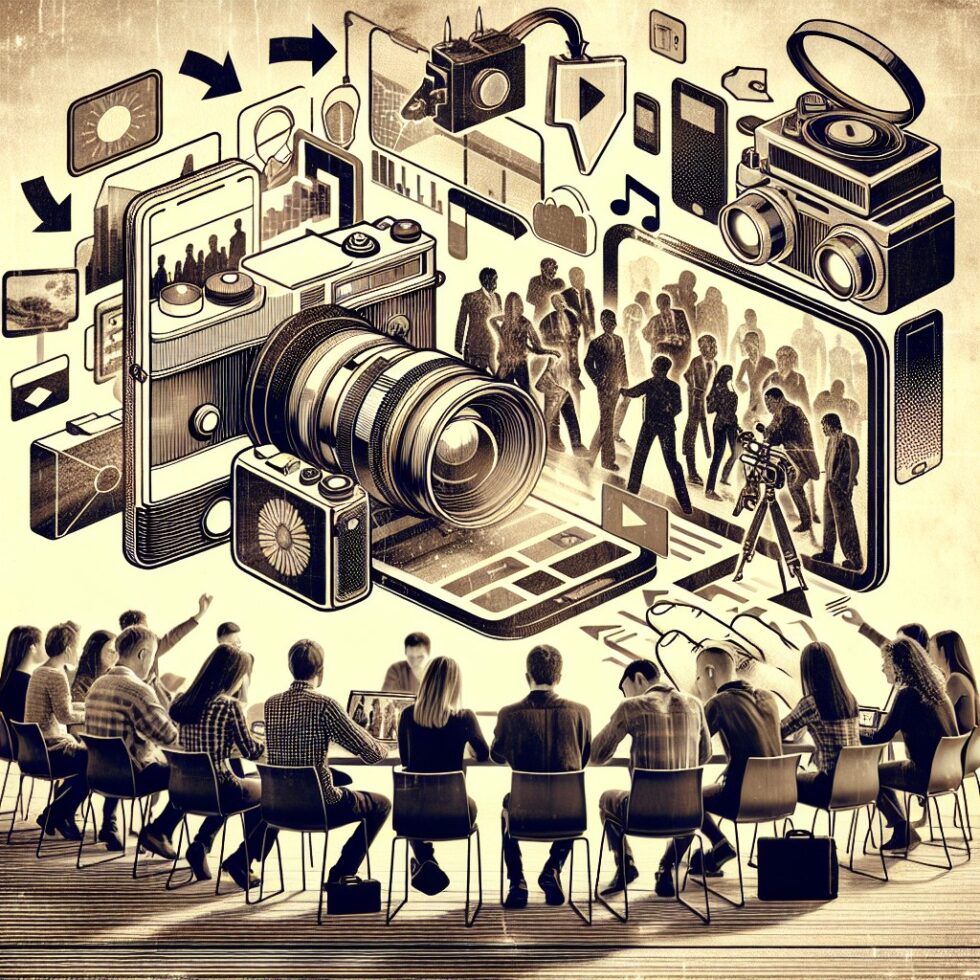
Spatial video is finally leaving the lab. Phones can capture it. Headsets can play it. Laptops can edit it. Yet moving footage between ecosystems still trips people up. Files don’t play. Colors look wrong. Left and right eyes don’t line up. This guide cuts through that with clear, device‑agnostic steps. You’ll learn how to capture, convert, fix, and share spatial video so it looks good everywhere—without needing a studio or a new PC.
What “spatial video” really means today
“Spatial” gets used for many formats. For this article, we’re talking about stereoscopic video: two slightly different views, one for each eye, that your brain fuses into depth. You’ll see it packaged in a few common ways:
- SBS (Side‑by‑Side): Left and right views placed next to each other in a single frame, usually equal width. Many VR players support this with no special metadata.
- TB (Top‑Bottom / Over‑Under): Left eye on top, right eye on bottom. Handy for some headsets and players that prefer vertical stacking.
- MV‑HEVC (Multi‑View HEVC): Two synchronized views stored as layers in one HEVC stream. This is efficient and elegant, but not every tool can edit or play it today.
On the audio side, you’ll see stereo (most common), binaural (headphone‑friendly 3D feel), or ambisonic (scene‑based 360 audio—overkill for simple 3D but useful in immersive cuts). You don’t need fancy audio to start. Clean stereo is more than enough.
Capture: get two views in sync without grief
Phones that record spatial video
Some modern phones can record stereoscopic clips with a tap, using closely spaced cameras and vendor apps. If you have that option, use it. Your two eye views will be time‑locked, and you’ll avoid many post‑production headaches.
If your phone doesn’t have a built‑in spatial mode, you still have options:
- Clip‑on dual lenses designed for 3D capture. Quality varies, but they’re simple.
- Two synchronized phones mounted parallel with a fixed inter‑camera distance. Trigger both at once and clap at the start for sync.
- Dedicated 3D cameras if you want plug‑and‑play depth with minimal setup. They’re still niche, but improving fast.
Frame rate, shutter, and exposure
Pick a single frame rate and lock exposure across both views. Flicker and stepping exposure break depth instantly. If you use two devices, match:
- Frame rate (e.g., 30 fps or 60 fps)
- Shutter speed (180‑degree rule is a good start: 1/(2 × frame rate))
- White balance (lock it; avoid auto)
- ISO (hold steady; avoid auto gain pumping)
Keep the inter‑camera distance reasonable
A rough rule: keep the lens separation close to typical human interpupillary distance (about 63 mm) unless you’re filming very small or very large scenes. Too wide and nearby objects will feel uncomfortable. Too narrow and the depth will be flat.
Organize: name and prep files so you don’t lose track
Spatial workflows involve more files than regular video. Start with a simple structure:
- Project folder per shoot day
- Subfolders: raw_left, raw_right, audio, proxy, exports
- Consistent names: scene01_left.mov, scene01_right.mov
Proxy edits help if your laptop struggles. Make lightweight H.264 proxies for timeline work, then relink to originals for final export.
Edit: align, color, and stack the views
Match color and exposure first
Before stacking the two views, make them look the same. Match exposure, white balance, and contrast. Many NLEs have a “match color” feature. If not, use scopes. Don’t rely on your eyes alone. Minor mismatches become major eye strain in a headset.
Horizontal and vertical alignment
Even slight misalignment can cause headaches. Check:
- Vertical alignment: Make sure horizons and shared edges line up horizontally across both views.
- Keystone and rotation: Correct lens tilt so both views agree.
- Convergence: Decide whether to toe‑in (angle lenses) or parallel. For post flexibility, most creators shoot parallel and adjust convergence in editing.
SBS and TB timelines
Many editors (DaVinci Resolve, Premiere Pro, Final Cut) can stack two clips into a single frame. For SBS, create a timeline with double the target width and place left and right views side by side. For TB, double the height and stack top and bottom. Label your layers clearly. Small mistakes here will haunt your exports.
Convert: make versions that actually play
This is where most people get stuck. Different headsets and apps prefer different containers and stereo flags. The good news: a couple of standard outputs will cover almost anything.
Universal SBS export
Export a high‑quality SBS master and a smaller streaming copy:
- Master: HEVC (H.265), 10‑bit if your sources are HDR, constant quality target (e.g., CRF 18–20), keyframe every 2 seconds, high profile, yuv420p10le for 10‑bit.
- Streaming copy: H.264, 8‑bit, CRF 18–21 for portability, same frame rate.
With ffmpeg, if you already have separate left/right views:
Example (SBS, HEVC):
ffmpeg -i left.mp4 -i right.mp4 -filter_complex “[0:v]scale=1920×1080,format=yuv420p[left];[1:v]scale=1920×1080,format=yuv420p[right];[left][right]hstack=inputs=2[v]” -map “[v]” -map 0:a? -c:v libx265 -crf 20 -preset slow -x265-params “keyint=60:min-keyint=60:scenecut=0” -c:a aac -b:a 192k output_sbs.mp4
Notes:
- Adjust the scale for your target resolution.
- Use libx265 for HEVC and libx264 for H.264.
- “-map 0:a?” includes audio if the left input has it; you can also mix or replace with external audio.
Top‑Bottom for players that prefer it
Swap hstack for vstack if your headset player prefers TB. Some VR players auto‑detect based on file name suffixes like _TB or _LR, so add those when exporting.
Dealing with HDR footage
Phones increasingly record HDR (HLG or PQ). If your player or headset expects SDR, tone‑map during export so the image doesn’t look washed out or clipped. With ffmpeg you can apply a consistent SDR conversion:
ffmpeg -i hdr.mov -vf “zscale=transfer=bt2020-10:matrix=bt2020nc:primaries=bt2020:range=tv,tonemap=hable,zscale=transfer=bt709:matrix=bt709:primaries=bt709” -colorspace bt709 -color_trc bt709 -color_primaries bt709 -c:v libx265 -crf 20 -preset slow -c:a copy sdr_sbs.mp4
Tip: If you need HDR end‑to‑end, keep a 10‑bit HEVC master and test on your specific headset. Not all players honor HDR metadata the same way.
About MV‑HEVC
MV‑HEVC stores both eye views as layers in a single stream. It’s efficient and elegant, but fewer editors handle it well. If your capture device creates MV‑HEVC and you want cross‑platform compatibility today, the simplest path is to convert it to SBS or TB for editing and playback. Keep the MV‑HEVC original archived for future re‑edits as tool support improves.
Playback: what works on common headsets
General approach
Most headsets play SBS or TB through a file browser or media app. Store files locally, or stream from a NAS/PC over your network. File naming helps auto‑detection. For example, some players recognize _LR or _TB and _180 or _360 hints. Check the player’s documentation.
Device‑specific hints
- Apple head‑mounted displays: Some Apple devices and apps support MV‑HEVC “spatial video” directly. For broad sharing, provide an SBS version as well so friends on other headsets can watch.
- Meta Quest family: Third‑party players like SKYBOX handle SBS/TB well. Place files on local storage or stream over SMB. Use consistent names and test short samples first.
- Desktop and laptop playback: On a 3D monitor or in a windowed VR player, SBS is the most reliable option. Keep a well‑compressed H.264 version for maximum compatibility.
Comfort: make 3D people actually want to watch
Mind the parallax budget
Depth is not free. Keep background parallax modest so viewers don’t diverge their eyes uncomfortably. If distant objects separate too much, reduce interaxial (lens spacing) during capture or bring convergence forward in post.
Avoid window violations
Objects that touch the frame edge while appearing in front of the screen cause discomfort. Reframe slightly or adjust convergence so foreground subjects do not “break” the window.
Cutting and pacing
Hard, frequent cuts are tiring in 3D. Use gentle pacing. Give viewers a few seconds to settle into each shot. When you must cut fast, match geometry and motion direction across cuts to reduce discomfort.
Stabilization and motion control
Shaky 3D is worse than shaky 2D. If your phone or camera logs gyro data, use a stabilizer like Gyroflow. Apply the same settings to both views so they match perfectly. If you use optical stabilization, try to lock it consistently across both lenses—mixed stabilization profiles can cause vertical wobble between eyes.
Audio: keep it simple, keep it synced
Stereo is fine for most spatial videos. If you do add binaural or ambisonic tracks, test on multiple players. Make sure audio stays in sync; even a small drift feels wrong when visuals are immersive. Lock sample rates (48 kHz is common), and avoid sample‑rate conversions mid‑project.
Metadata: the small flags that unlock compatibility
Some players need metadata to interpret your file as stereo 3D. Others guess based on file name. A few pointers:
- SBS/TB: Many players recognize stereo3d hints or file suffixes (e.g., _LR, _TB, _180). Consult your player’s docs and be consistent.
- VR180/360: If you shoot immersive hemispherical or spherical content, inject spatial metadata so platforms like YouTube render correctly. Google’s Spatial Media tools can help.
- MV‑HEVC: Keep original metadata intact when archiving; if you transcode to SBS/TB, document your steps so you can reproduce them later.
A practical, cross‑platform workflow you can repeat
1) Capture
- Use your phone’s spatial mode if available. Otherwise, lock two cameras side by side with matched settings, and slate with a clap for sync.
- Record clean stereo audio. Use a small external mic if wind noise or handling noise is a risk.
2) Ingest and checks
- Copy files to your project folder (left/right/audio). Verify duration and frame rate match.
- Create proxies if your NLE struggles with the originals.
3) Edit and align
- Match color and exposure across both views using scopes.
- Correct vertical and rotational offsets; set convergence where it feels comfortable.
- Build an SBS or TB timeline and preview in a headset player if possible.
4) Export masters
- Export an HEVC SBS master (10‑bit if working in HDR).
- Export an H.264 SBS copy for compatibility and quick sharing.
5) Naming and metadata
- Use suffixes like _LR or _TB, and include _180 if applicable.
- Inject VR180/360 metadata if the footage is hemispherical or spherical.
6) Share and archive
- Test on your target headset with a short sample before exporting a long cut.
- Archive the original captures (including MV‑HEVC files) and your project files for future re‑edits.
Common pitfalls and how to avoid them
- Washed out or neon colors: You exported HDR into an SDR player without tone‑mapping. Convert to SDR or test an HDR path end‑to‑end with 10‑bit HEVC and correct metadata.
- Immediate eye strain: Vertical misalignment, over‑strong parallax, or a window violation. Re‑align, reduce interaxial distance, or adjust convergence.
- Judder on pans: You shot at 24 fps and panned quickly. Favor 30 or 60 fps for smoother headset playback, and keep pans slow.
- File won’t play: The player doesn’t like your codec, level, or container. Try H.264 instead of HEVC, or reduce resolution/bitrate. Rename with clear SBS/TB suffixes.
- Audio drift: Sample rates don’t match or edits weren’t ripple‑trimmed on both views and audio. Standardize at 48 kHz and keep edits locked.
Going further: polish that pays off
Color management you can trust
Adopt a simple rule: keep one master color pipeline for the project. If you start in SDR Rec.709, stay there until the end. If you must mix HDR and SDR sources, convert them to a common working color space up front. Fewer surprises, fewer do‑overs.
Depth grading
Just like color grading, you can “grade” depth. Use subtle convergence pulls, crops, and mask‑based parallax adjustments to guide attention and reduce strain. A tiny tweak can turn a flat scene into something you feel in your chest—without breaking comfort.
Text and graphics in 3D
On‑screen text must not fight your depth. Either keep it comfortably behind the window plane, or place it on a stable element in the scene. Fade in/out gently. High‑contrast 2D overlays floating in front of fast background motion are disorienting.
Practical Q&A
Do I need a beastly PC?
No. You can edit proxies on an average laptop. The slowest part will be final HEVC exports. Use lower presets for tests and leave the “slow” encode overnight for your master.
What resolution should I target?
Match your headset and content. For typical consumer headsets, 3840×2160 (SBS: two 1920×2160 halves) is a solid starting point for 180° or standard stereo. For flat 3D without a 180° lens, 3840×1080 (two 1920×1080 halves) is common. Test samples to confirm clarity and decoder limits.
Can I upload spatial videos to mainstream platforms?
Yes—but check what they support. Some platforms handle SBS if you upload as a standard video. For true VR180/360, inject proper metadata per the platform’s guide. Always preview the processed result; platforms may transcode and change the look.
Is MV‑HEVC worth it right now?
As a capture format, yes. It’s efficient and keeps views in perfect sync. As a distribution format across mixed ecosystems, it’s inconsistent today. Keep it for archiving and platform‑native playback; share SBS/TB for everything else.
A simple starter kit
- Capture: Your phone’s spatial mode, or two phones on a small rail. A cheap external mic helps.
- Stabilize: A lightweight gimbal or software stabilization using gyro data.
- Edit: Your favorite NLE plus scopes.
- Encode: ffmpeg for reliable, scriptable exports.
- Playback: A headset player that supports SBS/TB and local/network files.
Why this matters
Spatial media is shifting from novelty to normal. Short, watchable clips shared between friends and across headsets are what will make it stick. When you avoid proprietary dead ends and publish one clean SBS master alongside any platform‑specific versions, you protect your work from churn. That’s the difference between a one‑off demo and a library you can enjoy in five years.
Summary:
- Spatial video today means two synchronized views: share in SBS/TB for maximum compatibility.
- Lock camera settings at capture; match color and alignment before stacking.
- Create an HEVC SBS master and an H.264 SBS copy; tone‑map HDR to SDR when needed.
- Use clear file naming and, for VR180/360, inject platform‑specific spatial metadata.
- Test on your target headset with a short sample, then export the long cut.
- Keep MV‑HEVC originals for archiving; distribute SBS/TB across mixed ecosystems.
External References:
- FFmpeg: official site and documentation
- GPAC/MP4Box: packaging and metadata tools
- Google Spatial Media: VR180/360 metadata injector
- SKYBOX VR Player: cross‑platform SBS/TB playback
- DaVinci Resolve: professional editing and color
- Gyroflow: open‑source gyro‑based video stabilization
- Apple Support: Spatial photo and video overview